Google Docs to Markdown: Three Routes, and What Each Drops
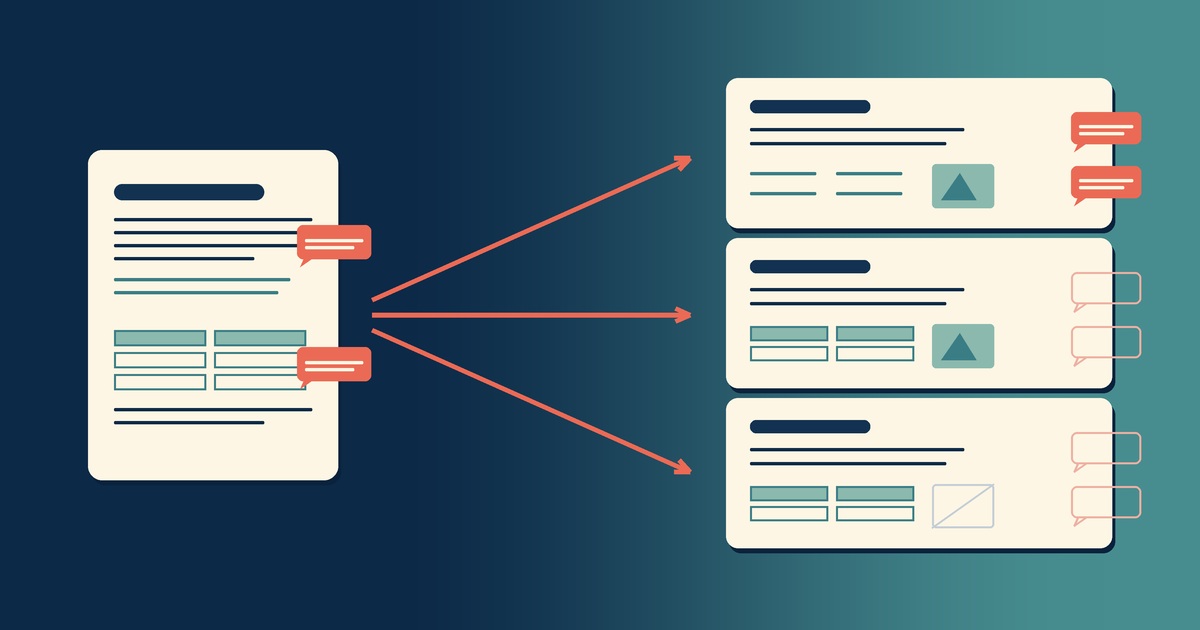
To convert a Google Doc to Markdown, open the document and choose File → Download → Markdown (.md). No add-on, no upload, no conversion site. Google built it in back in July 2024.
That’s the whole answer if your document is plain prose. If it has comments or images in it, take a different route, because the Markdown export drops every comment. No text, no marker, nothing left to show a conversation was ever there.
There are three ways out of a Google Doc. We ran all three over one test document, with three tabs, two heading levels, a table, a picture, both kinds of list and one comment on it. When we first wrote this, none of them won outright. Constly now imports Google’s zipped web page download directly, and that route keeps everything on the list.
What each route keeps
| File → Download → Markdown | Web page (.html, zipped), imported into Constly | Download as Word, then import | |
|---|---|---|---|
| All tabs | Yes | Yes | Yes |
| Headings | Wrapped in bold | Clean | Clean |
| Bullet + numbered lists | Run together | Separated | Separated |
| Tables | Real Markdown table | Real Markdown table | Real Markdown table |
| Links | Clean URL | Clean URL | Clean URL |
| Images | Embedded, 313 KB file | Separate file, in a folder | Separate file, in a folder |
| Comments | Gone | Kept, as footnotes | Gone |
| File size | 313 KB | 1 KB, image beside it | 1 KB, image beside it |
Every cell in that table comes from our own export rather than from Google’s documentation. The document held 1,111 bytes of actual writing.
Pick by what your document is carrying. A draft that’s been through review has to go out as the zipped web page, because that’s the only way the comments come with it, and in Constly that route also keeps the pictures as real files. If you’re converting by hand instead, the Word download is the one that keeps pictures separate. A plain document with no comments and no pictures can take the built-in export: two clicks and you’re done.
If the document has comments, go via HTML
Comments do not survive the Markdown export. The sentence we had commented on came out as ordinary prose, indistinguishable from the rest of the paragraph. If a document has been through review, everything anyone said about it stays behind in Google’s copy.
What makes that worth planning around is that nothing tells you it happened. You get a file, it looks complete, and the missing part is missing quietly.
The web page download keeps them. File → Download → Web page (.html, zipped) writes each comment out as a numbered endnote with a marker in the text where it was anchored.
Since Constly 4.10.0, you can import that zip as it is, with File → Import (Word, HTML…)… in Constly. You don’t need to unzip it first. Each comment becomes a Markdown footnote at the spot it was attached to, marked so you can tell it from a footnote you wrote yourself:
This sentence should carry a comment. Please attach one to it.[^1]

[^1]: Comment: Test comment: does this survive the Markdown export?
That is the only route we found that carries a review conversation into Markdown at all. A line above the document says what came across; for our test document it read “Imported from Google Docs: 1 comment as a footnote, 1 image, 1 table.”
The import also fixes the things a plain HTML conversion gets wrong with Google’s export. Google writes bold and italic as styles, which a converter normally drops, and Constly keeps them. Google wraps every link in a redirect (google.com/url?q=...), and Constly unwraps it back to the real address. The picture lands in a folder next to the document instead of inside it. The table stays a table, too. Ours had its header row pinned, which Google writes in a way that a converter like Pandoc flattens into one loose line per cell.
The import runs on Pandoc. If you don’t have it, Constly offers to fetch it for you: one click, about 26 to 42 MB depending on your machine, kept in Constly’s own folder rather than installed system-wide. It’s the same import used for saving web pages as notes.
Converting the HTML by hand with Pandoc gets the comments too, as [a] markers linking to endnotes. You also get the redirect links, the bold and italic disappear, and a pinned-header table comes out as loose lines.
Tabs: all of them export, plus a heading you didn’t write
Docs tabs look like separate documents, so you’d expect an export to take only the one you’re looking at. It doesn’t. All three of ours landed in one file, in order, with their contents intact, and that held on all three routes.
There’s one thing to fix afterwards, and it’s worth being precise, because two different things end up looking alike in the file.
A tab has a name. That’s the label in the list down the left side of Docs, the one you click to switch tabs. It is not text on the page.
A heading is text you typed on the page and styled as Heading 1.
The built-in export turns the tab name into a heading as well. Our second tab was named “Research notes” in the sidebar, and the first thing inside it was a Heading 1 reading “Sources we checked”. Here is what came out:
# **Research notes**

# **Sources we checked**
The first line was never in the document. It’s the sidebar label promoted to a top-level heading, and you get one per tab, so a three-tab document arrives with three headings it never had, competing with your real ones.
Delete those lines, or push your real headings down a level so the labels become the sections. The other two routes handle this better. Both write the tab name as text rather than a heading (the zipped web page import makes it a bold line, **Research notes**), so it marks where each tab starts and stays out of your outline.
Images are the reason that file is 313 KB
Markdown normally points at an image. Google embeds it. Each picture becomes a base64 data URI written into the .md itself, so the text and the pictures become one object.
Our document had 1,111 bytes of writing and one photo in it. The exported file was 313 KB, and 99.6 percent of that was the photo. From one image. Put a dozen screenshots in a document and the Markdown runs to several megabytes, which is slow to open and miserable in git.
Both other routes fix this. The zipped web page carries the picture as its own file, and Constly’s import puts it in a folder next to the document. On our test document that came to a 1 KB Markdown file and the 352 KB photo beside it. The same document downloaded as .docx also converts to a 1 KB Markdown file with the image kept as a separate file you can move, replace or delete on its own.
Importing that .docx into Constly brings the picture along: since 4.8.0 the import extracts the images and, when you save the file, writes them to a folder next to it (mydoc-assets/), with the links in the Markdown already pointing there. Earlier versions wrote the link but not the image. If you’d rather do it by hand, the pandoc flag is --extract-media:
pandoc mydoc.docx -t gfm -o mydoc.md --extract-media=./mediaOn our document that produced a 1 KB Markdown file next to a 217 KB image, instead of one 313 KB blob.
Two smaller things
A bulleted list followed by a numbered list exports with no blank line between them:
* First bullet
* Second bullet
1. First numbered item
2. Second numbered item
To a strict parser that’s one list, and the numbers are a continuation of the bullets rather than a new sequence. Some editors render it the way you meant, some don’t. Add the blank line and it behaves everywhere. Both of the other routes separate them for you.
Headings also come out of the built-in export wrapped in bold, as # **Heading** rather than # Heading. It’s harmless in most renderers and ugly in a few.
Then open the folder
Whichever route you take, what you’re holding at the end is the same thing: a .md file on your own disk. Any editor opens it and your backup catches it, and there’s no export button standing between you and your own writing any more.
Constly opens a single .md without setting up a workspace first, which is what you want when you’re checking whether an export worked. It’s free, and there’s no account step between downloading it and opening a file.
Migrating from somewhere else too? We wrote up getting notes out of Google Keep. The reasoning behind keeping them as files is in what local-first actually means.
FAQ
Do I need an add-on to export Markdown from Google Docs? No. It’s built in at File → Download → Markdown (.md), and has been since July 2024.
Will all my tabs export, or just the one I’m looking at? All of them, in order, in one file. The built-in export adds each tab’s sidebar name as a top-level heading above that tab’s content, which you’ll probably want to delete.
Do comments come across? Not through the Markdown export. They’re dropped with no marker left behind. Download the document as a Web page (.html, zipped) instead and import the zip into Constly: each comment becomes a footnote at the spot it was attached to, marked “Comment:”.
Why is my exported file so large?
Images are written into the file as base64 rather than saved alongside it. One photo turned 1,111 bytes of writing into a 313 KB file. Import the zipped web page into Constly, or download as .docx and convert with --extract-media, if you want the images as separate files.
Which route should I use? If you need the comments, download the zipped web page and import it into Constly, which also keeps the pictures as separate files. Converting by hand, use Word for a document full of pictures. If it’s neither, the built-in export is two clicks and it’s fine.
Does exporting change my Google Doc? No. Downloading takes a copy. The original stays where it is, comments and all.
Last updated October 2, 2026.
Keep reading
-
Open Markdown from VS Code, Cursor or Windsurf in Constly
A free extension for VS Code, Cursor, Windsurf and VSCodium: one click saves the Markdown file you're on and opens it in Constly, at your cursor.
-
Wikilinks vs Markdown Links: Which One Still Works When You Change Apps
[[Note]] is not part of Markdown, so most tools show it as typed. [Note](Note.md) works in all of them. One test file, three readers, and a one-line conversion.
-
Leaving Google Keep? How to Get Your Notes Out as Markdown
Google Takeout hands you Keep as one file per note. A short script turns them into Markdown, titles, checklists and labels included, ready for any plain-text app.
-
How to Preview a Markdown File on a Mac
Press Space on a .md file and macOS shows you the source, hashes and asterisks included. Here is why, and three ways to actually read the thing.
-

Version History for Your Notes, Free, Forever
Two free layers of version history for plain-text notes: Constly's local snapshots as you save, and git for a history that outlives any app. Plus a ten-minute backup plan.
-

Save Web Pages as Markdown Notes You'll Actually Find Again
Save a web page as a Markdown note: paste it into Constly, or save it as HTML and import. The clutter stays behind; you get a plain .md you can search.