Save Web Pages as Markdown Notes You'll Actually Find Again

The quickest way to save a web page as a Markdown note on a Mac is to copy the article in your browser and paste it into Constly: the tag soup drops away and you get clean Markdown. For a whole page, save it as HTML (⌘S in the browser) and use File → Import (Word, HTML…)…; Constly runs it through a readability pass, so the article comes in and the navigation, cookie banners and “skip to content” links stay behind. Either way you end up with a plain .md file on your disk, which is the part that makes it findable later.
That “later” is the whole problem. A thread on r/productivity asked what people do when they find something online they want to remember, and the honest answers were a graveyard of bookmarks, browser tabs and a read-later app nobody opens. A note you can search from anywhere on your Mac is a different thing from a link you saved somewhere.
Why a Markdown file beats a read-later queue
| Read-later app | Markdown note on disk | |
|---|---|---|
| Where it lives | Their servers | Your notes folder |
| Finding it again | Their search, while you’re subscribed | Spotlight, any editor, grep |
| Adding your own thoughts | A highlights feature, if there is one | Type under the article, it’s your file |
| When the service closes | Export, if you get the email in time | Nothing happens |
| Offline | Sometimes | Always |
The article becomes a file next to your other notes, so it turns up when you search for the thing you were thinking about, not only when you remember that you saved it.
Method 1: copy, then paste into Constly
- In your browser, select the article text (⌘A on a clean reader view works, or drag across the part you want).
- Copy with ⌘C.
- In Constly, make a new note and paste with ⌘V.
Constly strips the HTML on the way in and writes clean Markdown: headings stay headings, lists stay lists, links keep their targets. You can still write raw HTML by hand if you want to; it’s only stripped on paste.
Best for: one article, right now, or just the paragraph you actually wanted.
Method 2: save the page as HTML, then import it
This is the route for a full page, and the one where the readability pass earns its keep.
- In your browser, press ⌘S and save the page as HTML only (Safari calls this “Page Source”; Chrome and Firefox call it “Webpage, HTML Only”).
- In Constly, choose File → Import (Word, HTML…)… and pick the file you saved. It’s also in the command palette under the same name.
- Save the note where you keep the rest.
Since Constly 4.5, an imported web page goes through a readability pass first. The article comes through; the nav bars, cookie banners and “skip to content” links don’t. One honest limit: HTML you wrote yourself is imported as-is, on the assumption that you meant all of it, so a page with an unusual structure can bring a stray block along. Delete it. You’re in a text editor.
Best for: long reads, documentation pages, anything you want whole.
Method 3: Pandoc, for a folder of pages at once
If you have a pile of saved HTML files, Pandoc will convert them all from the terminal:
pandoc saved-page.html -t gfm -o saved-page.mdPandoc does a faithful conversion and nothing more, so the navigation and footer come along with the article. For one page that’s a minute of deleting; for a folder of them, a script and a minute of deleting each. Constly’s import uses Pandoc for Word, ODT, RTF, LaTeX and EPUB files too, which is why the menu item says “Word, HTML…”.
Best for: batch jobs and people who already live in the terminal.
Make it findable
A saved page is only useful if it surfaces when you need it, so spend ten seconds on each one.
- Put the source at the top. First line:
Source: [page title](https://the-url), saved 8 Sep 2026. Future you will want to know where it came from and whether it’s still there. - Name the file for the search you’ll run.
2026-09-08-cli-flags-cheatsheet.mdbeatsUntitled 14.md. Constly’s Quick Open (⌘⌥P) finds notes by name, and Spotlight indexes plain text, so a good filename is a good index. - One folder for clippings. Call it
ClippingsorSaved, keep it inside your notes folder, and open the whole folder in Constly with File → Open Folder… when you want to browse. - Write one line about why. Under the source line:
Why: the section on retries. That line is what you’ll search for. The article is what you’ll read once you find it.
FAQ
Do I need to be online to import? No. The file is on your disk and the conversion runs inside Constly. Save the page while you have the connection, import it whenever.
What about images? The Markdown keeps links to images at their original web addresses. Constly asks before it loads anything from the web, so each one shows as a Load button until you click it, and it works for as long as the page still exists. If you need them kept locally, save the image files alongside the note and point the links at them.
Can I save a paywalled article? You can save whatever your browser can show you. If you can read it, ⌘S saves it; if the page is a login wall, that’s what you’ll save.
Does this work for Word documents too?
Yes, the same Import (Word, HTML…)… item takes .docx, and ODT, RTF, LaTeX and EPUB alongside it. There’s a separate guide coming for Word specifically.
Is this the same as “Export to Markdown” in a read-later app? Only at the end. The difference is where the file lives afterwards: in your folder, next to everything else you know, rather than in an account. If you want the reasoning behind that, What local-first actually means has it.
Constly is free to download, for macOS, Windows and Linux. Every feature works without an account, including import.
Last updated September 25, 2026.
Keep reading
-
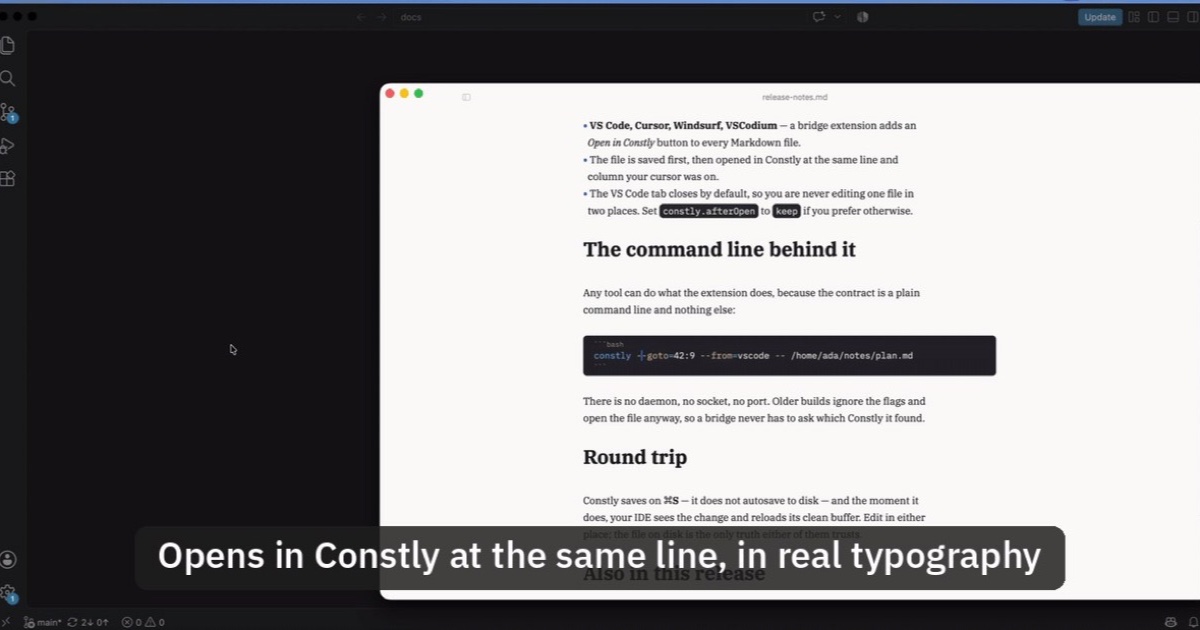
Open Markdown from VS Code, Cursor or Windsurf in Constly
A free extension for VS Code, Cursor, Windsurf and VSCodium: one click saves the Markdown file you're on and opens it in Constly, at your cursor.
-
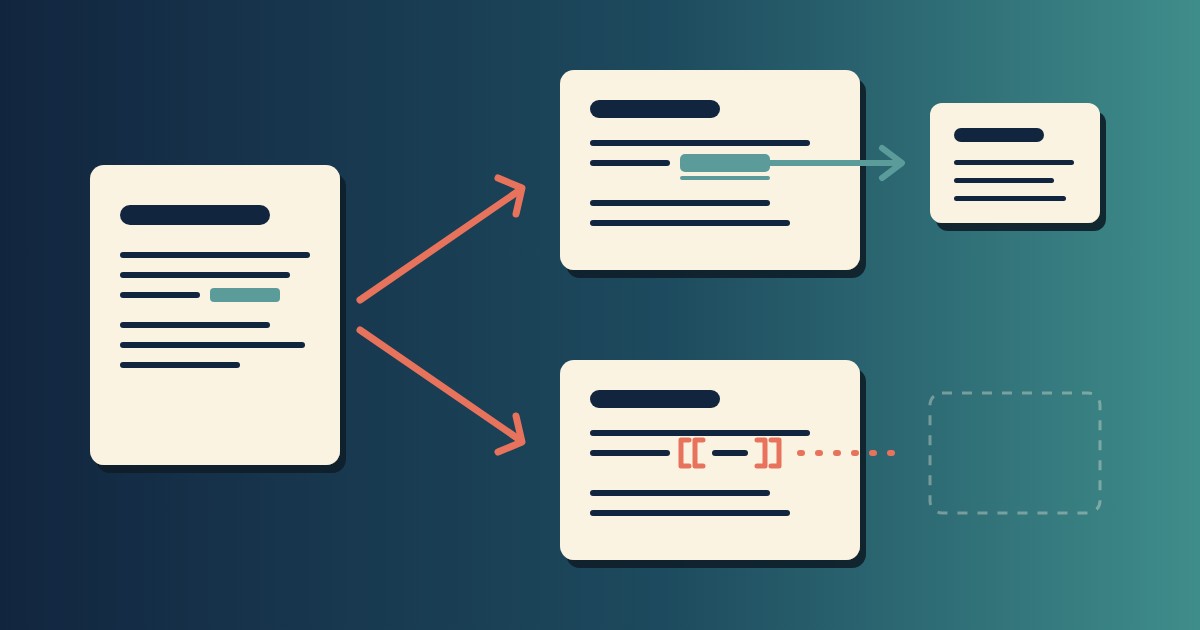
Wikilinks vs Markdown Links: Which One Still Works When You Change Apps
[[Note]] is not part of Markdown, so most tools show it as typed. [Note](Note.md) works in all of them. One test file, three readers, and a one-line conversion.
-
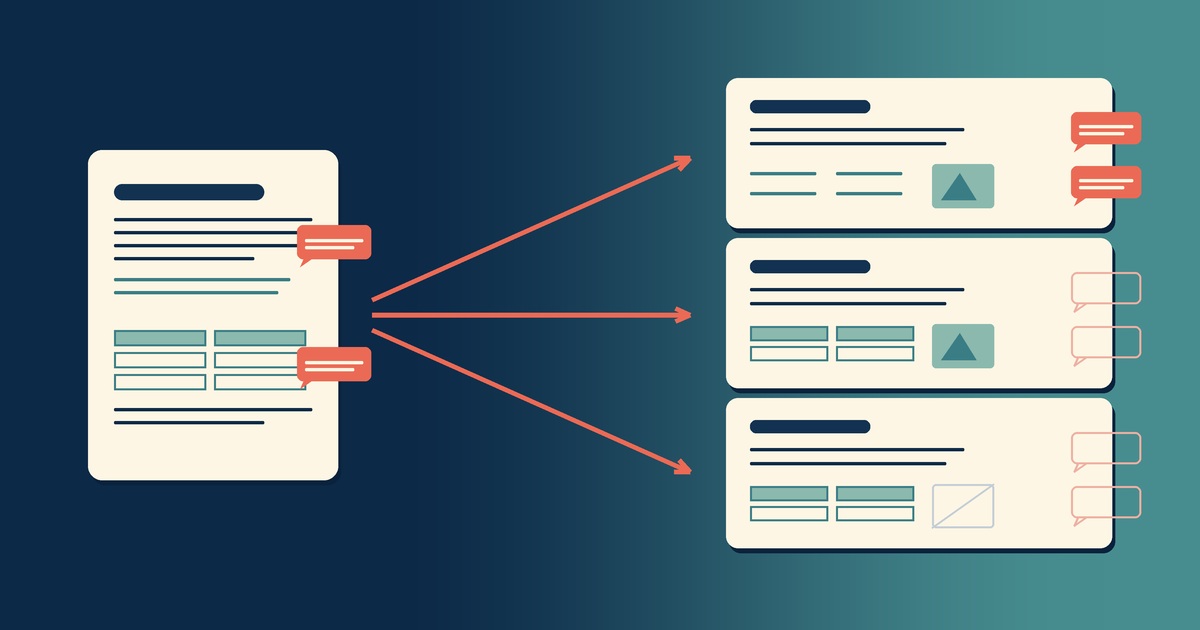
Google Docs to Markdown: Three Routes, and What Each Drops
Google Docs exports Markdown from the File menu, and drops every comment on the way. Three routes out of a Doc, tested on one document, and what each costs.
-
Leaving Google Keep? How to Get Your Notes Out as Markdown
Google Takeout hands you Keep as one file per note. A short script turns them into Markdown, titles, checklists and labels included, ready for any plain-text app.
-
How to Preview a Markdown File on a Mac
Press Space on a .md file and macOS shows you the source, hashes and asterisks included. Here is why, and three ways to actually read the thing.
-

Version History for Your Notes, Free, Forever
Two free layers of version history for plain-text notes: Constly's local snapshots as you save, and git for a history that outlives any app. Plus a ten-minute backup plan.