Open Markdown from VS Code, Cursor or Windsurf in Constly
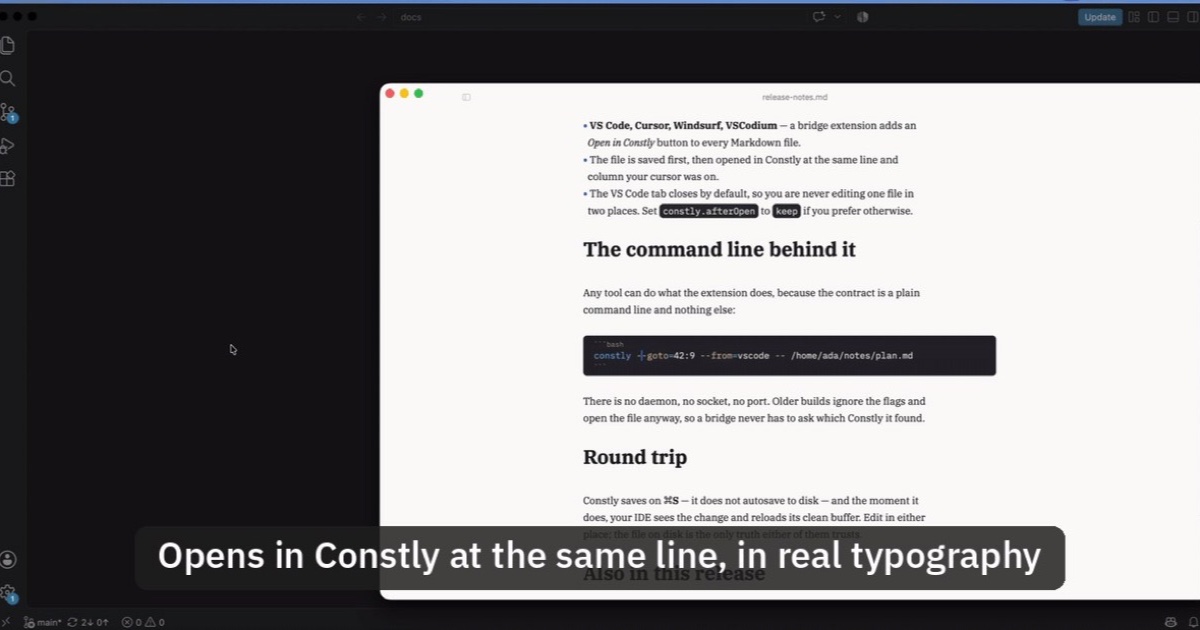
You write code in VS Code. Or Cursor, or Windsurf, or VSCodium. The README, the design doc and the release notes sit in the same repository, and they are Markdown. Until now, getting one of them into Constly meant leaving your editor, finding the file again and opening it by hand, then scrolling back to wherever you were.
Now there is an extension for that. Open Markdown in Constly puts a button on your Markdown files in VS Code and its forks. Click it and the file opens in Constly at the line you were on. It’s free, it’s MIT licensed, and it does one thing.
What happens when you click it
- It finds your Constly. It looks where Constly installs:
/Applicationson macOS, the installer’s registered location on Windows,constlyon yourPATHon Linux. If it can’t find it, Constly: Locate Constly… lets you point at the app, and if Constly isn’t installed at all it sends you to the download page. - It saves the file. Unsaved changes are written before anything launches, so Constly never opens stale bytes. An untitled buffer is asked to be saved somewhere first.
- It opens the file in Constly at the same line and column, in the Constly you already have running if there is one. Placing the cursor needs Constly 4.7.0 or later. On an older Constly the file still opens; the cursor just stays where it was.
- It closes the VS Code tab, so you’re not editing the same file in two places. If you’d rather keep it, set
constly.afterOpentokeep; VS Code reloads the file whenever Constly saves.
The button sits in the editor title bar on .md, .markdown and .mdx files. The same command is on the right-click menu in the editor, on the editor tab and in the Explorer (select several files to open them all), and in the Command Palette as Constly: Open in Constly. There is no default keyboard shortcut, so nothing of yours gets clobbered. Bind constly.open to whatever you like.
Getting your changes back to VS Code
The extension hands the file over and gets out of the way: you edit in Constly, and Constly writes the file. Constly saves on ⌘S / Ctrl+S. It does not autosave to disk. Your unsaved work is protected by Constly’s own session drafts, which survive a quit, a crash and an update, but they are not the file. Press save in Constly and VS Code sees the change. Until you do, VS Code has whatever was last saved.
Line endings, encoding and byte-order marks survive the trip, because Constly rewrites only the ranges you changed. It’s the same rule Constly follows for every file: your Markdown editor shouldn’t rewrite bytes you didn’t touch. Fix one line in Constly and git diff in VS Code shows one line.
What it doesn’t do
- Remote workspaces (SSH, WSL, containers, Codespaces). Constly opens files on your machine, so a file in a remote workspace is refused with a message.
- The browser. It isn’t available in vscode.dev.
- Untitled files. Save the file first so Constly has something to open.
One more limit worth knowing: a file with unsaved changes in another VS Code window isn’t saved by the extension. VS Code’s own “newer on disk” prompt protects that window’s edits.
Privacy
The extension makes no network requests and collects no data. It loads quietly when VS Code starts, and does not look for Constly, start anything or read a file until you use one of its commands. The only link it ever opens is the Constly download page, and only when you choose Constly: Install Constly….
Install it
- VS Code: install from the Visual Studio Marketplace, or open the Extensions view (⇧⌘X / Ctrl+Shift+X) and search for Constly.
- Cursor, Windsurf, VSCodium: install from Open VSX. These editors read from Open VSX rather than Microsoft’s Marketplace, so the same search in their Extensions view finds it.
The extension is a pre-release for now, so pick the pre-release when your editor offers it. It also needs Constly itself, which is free to use. The settings, the full walk-through and a short demo are on the extension’s page.
Writing a bridge for another editor
The extension contains no editor of its own. It launches Constly with a plain command line: the file, plus --goto=<line>:<col> for the cursor. That command line is public and documented in the IDE contract, so a script, a Makefile or a plugin for another editor can do exactly what the extension does. The extension’s source is on GitHub, MIT licensed, if you’d like a worked example. A JetBrains plugin comes later.
If something looks off, tell us on GitHub.
Keep reading
-
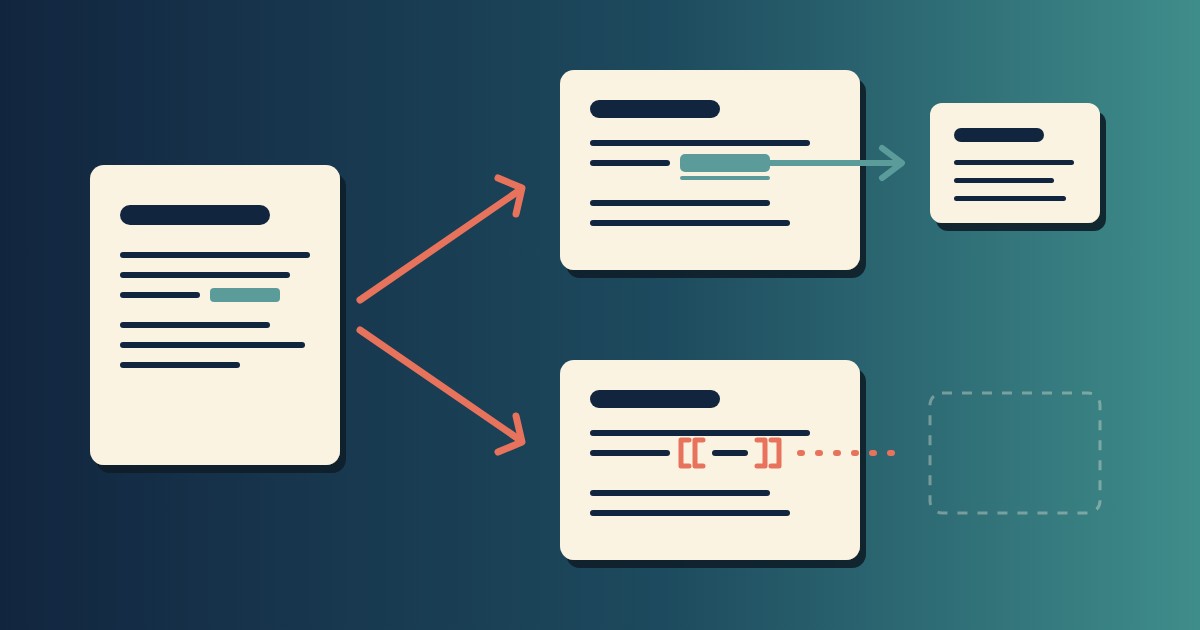
Wikilinks vs Markdown Links: Which One Still Works When You Change Apps
[[Note]] is not part of Markdown, so most tools show it as typed. [Note](Note.md) works in all of them. One test file, three readers, and a one-line conversion.
-

Google Docs to Markdown: Three Routes, and What Each Drops
Google Docs exports Markdown from the File menu, and drops every comment on the way. Three routes out of a Doc, tested on one document, and what each costs.
-
Leaving Google Keep? How to Get Your Notes Out as Markdown
Google Takeout hands you Keep as one file per note. A short script turns them into Markdown, titles, checklists and labels included, ready for any plain-text app.
-
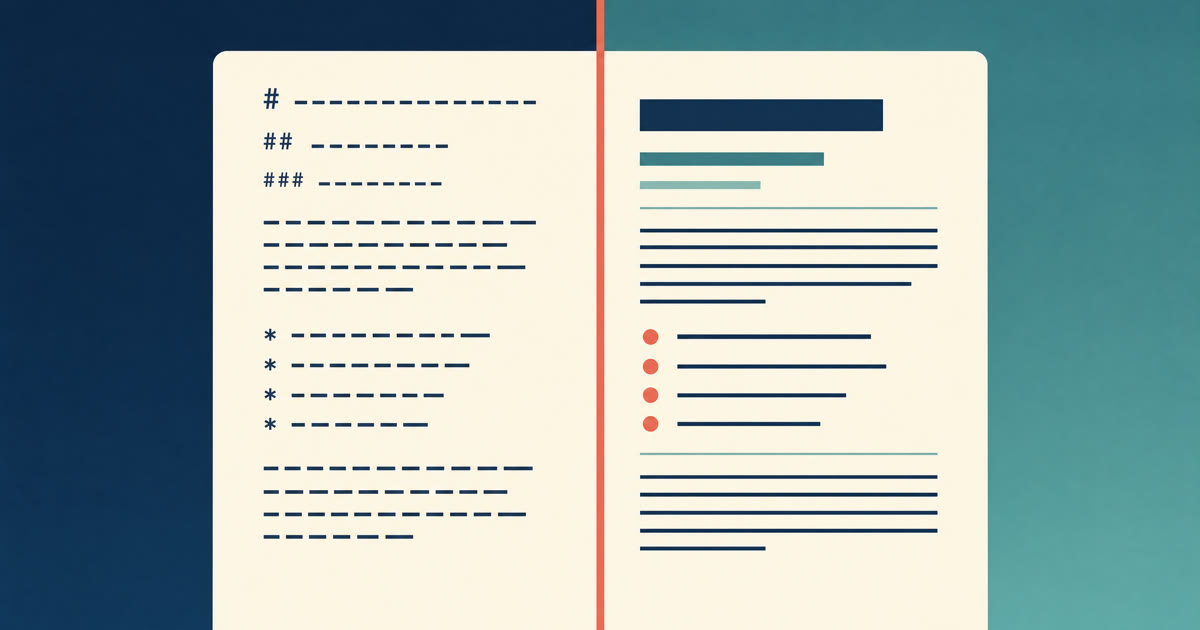
How to Preview a Markdown File on a Mac
Press Space on a .md file and macOS shows you the source, hashes and asterisks included. Here is why, and three ways to actually read the thing.
-

Version History for Your Notes, Free, Forever
Two free layers of version history for plain-text notes: Constly's local snapshots as you save, and git for a history that outlives any app. Plus a ten-minute backup plan.
-

Save Web Pages as Markdown Notes You'll Actually Find Again
Save a web page as a Markdown note: paste it into Constly, or save it as HTML and import. The clutter stays behind; you get a plain .md you can search.