Version History for Your Notes, Free, Forever
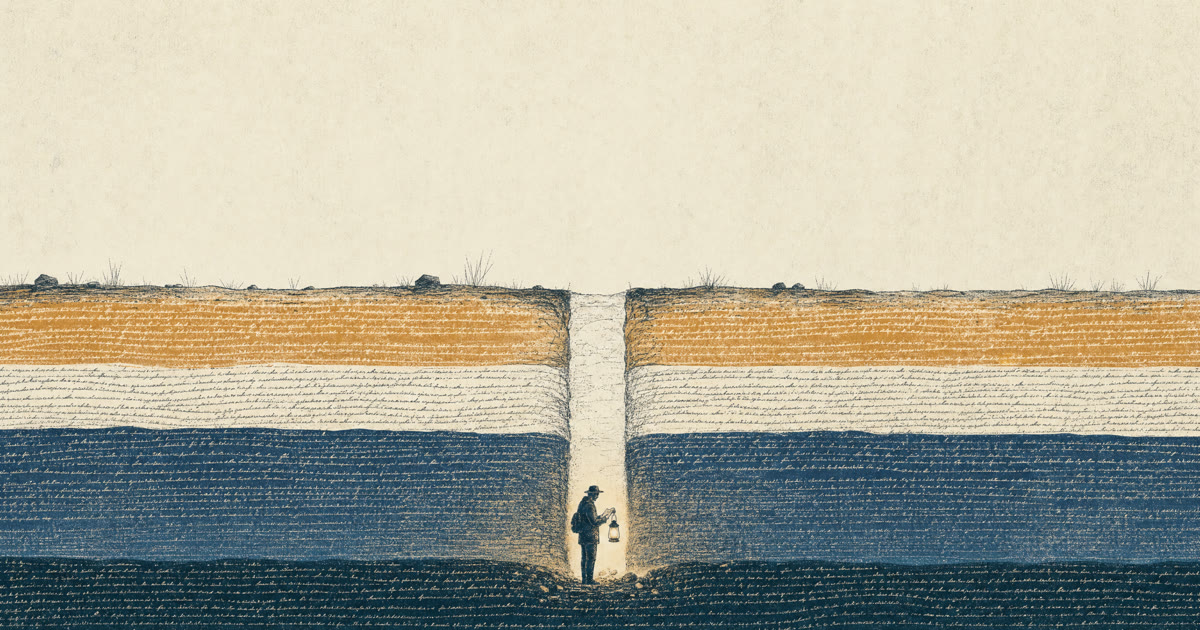
If your notes are plain text files, you can have full version history for nothing. There are two ways to get it, and they stack.
Constly is the first one. Turn it on and it keeps snapshots as you save. You open the history from the title bar, compare any old version against the current one, and put it back if you want it. Change your mind and undo. None of it leaves your computer.
Git is the second. It keeps a history that will outlive Constly and every other app, and it can bring back a note you deleted by accident.
Both are free. At the end there is a ten-minute backup plan for the thing neither of them does, which is keeping the folder itself safe.
Most notes apps sell version history as a premium feature. That is fair enough on their side. Storing every revision of your notes on their servers costs them money, so you rent it. The catch is what happens when you stop paying, or the app shuts down: the history goes with it. With plain files, the history was never theirs to rent in the first place.
Layer one: the history Constly keeps for you
Constly has local version history built in. It is off by default. Turn it on in Settings and from then on it snapshots each document as you save: at most one every two minutes, so autosave doesn’t fill the history, with older snapshots thinned to one an hour and then one a day. By default they’re kept for 90 days, and you can change both numbers.
The history opens from the title bar. You can compare any past version against the current one, restore it, and undo that restore if it was the wrong one. Snapshots stay on your disk and are never uploaded. You set a cap on how much space they can take, and a list of files you would rather it never snapshot at all.
That’s the everyday layer: the paragraph you deleted an hour ago, the version from Tuesday before you rewrote it. It needs no commands and no habit.
Layer two: git, the history that outlives any app
Constly’s history lives with Constly. For a history that lives with the files instead, whatever you open them with in 2040, there is git. It’s on practically every computer, and its documentation has promised the same thing for twenty years: line-level history of every change, which you can read and restore from.
We don’t make claims without receipts on this blog, so here’s the whole thing, run for real:
mkdir notes && cd notes && git init
echo "Pick up the venue keys on Thursday." > note.md
git add note.md && git commit -m "note"

# later you edit one word (Thursday to Friday) and commit again
Ask git what changed:
$ git log -p note.md
-Pick up the venue keys on Thursday.
+Pick up the venue keys on Friday.
One word changed, one readable line of history. The old version isn’t gone either:
$ git show HEAD~1:note.md
Pick up the venue keys on Thursday.
That is every version of every note, on your disk, with no account and no server that can shut down.
“But I’m not a programmer”
Git is a technical tool and the command line isn’t for everyone. Two things are still true.
The principle costs you nothing. History like this is possible only because the notes are plain files. Choose plain-text notes now and the option stays open; you can adopt git next year without converting anything. Lock your notes into a proprietary format and no tool can ever give you this.
The easy versions exist. GitHub Desktop and similar apps put buttons on the same engine, and on a Mac git arrives with the developer tools. One commit a day is a perfectly good notes-history habit. Constly’s own snapshots cover the hours in between.
This is the argument from Plain-text notes you’ll still be able to open in 2040, one step further. Plain text makes your notes durable. It also puts them in reach of a whole ecosystem of free tools, and git is the best of them.
The ten-minute backup plan
Version history answers “what did this note say last week?”. A backup answers “where are my notes?” after a disk dies or a folder gets deleted in a bad moment. Data-loss stories turn up about weekly in the self-hosting and note-taking communities we read. Here is one recent example. Almost every one of them ends with “I meant to set up backups”.
Ten minutes, two steps, both free:
- Turn on Time Machine. Once it’s enabled, macOS backs up your user files to the disk you point it at, on its own, and a folder of Markdown notes is just user files. Apple’s own guide: Back up your Mac with Time Machine. Plug the disk in now and then, and the copy stays current.
- Make the notes folder a git repository. In the folder, once:
git init && git add -A && git commit -m baseline. From then on, a commit whenever you like. This is what brings a deleted note back:
$ rm note.md
$ git restore note.md
$ cat note.md
Pick up the venue keys on Thursday.
We ran that one too. The restored file came back byte-identical to the original, checksum and all.
Time Machine covers the disk. Git covers the file, the line, and your own mistakes. Neither one needs a subscription or an account, and both keep working if you stop using Constly tomorrow.
Where Constly fits
Constly edits Markdown as plain files and doesn’t rewrite bytes you didn’t touch. That is why the diffs above stay one line long instead of turning into noise. Point it at a folder that happens to be a git repository and you don’t have to do anything special. The files are just files. Turn on local version history and you have layer one. Run the two commands above and you have layer two. Download it free and your version history stops being a subscription.
FAQ
Does Constly’s version history replace git? For everyday use, yes. For a history that’s independent of any app, no, and that’s the point of running both. Constly’s snapshots are for the paragraph you want back this afternoon; git is for the archive that’s still readable in a decade.
Do I have to commit manually? With git, yes. A commit is you saying “keep this version”. If that’s friction, a once-a-day habit or any auto-commit tool works; the history is equally free either way. Constly’s snapshots happen as you save without you doing anything, at most one every couple of minutes.
Is the history uploaded anywhere? Constly’s snapshots are local-only, never uploaded. Git stays on your disk too unless you push it somewhere yourself.
What about images and attachments? Git stores them, though it handles text best. For notes, that’s fine: the words are the part you can’t afford to lose. Time Machine gets the rest.
How much disk does the history use? Constly’s snapshots have a disk cap you set, and a list of files it should never snapshot. Git stores only the changes between versions, so a folder of notes stays small for years.
Last updated September 25, 2026.
Keep reading
-
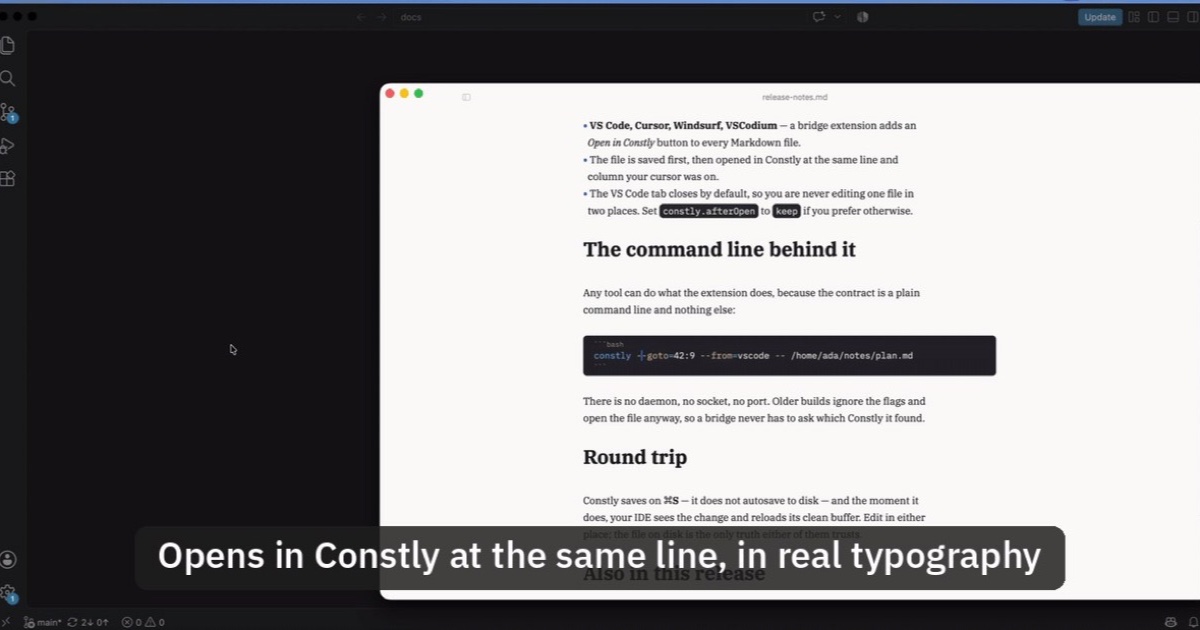
Open Markdown from VS Code, Cursor or Windsurf in Constly
A free extension for VS Code, Cursor, Windsurf and VSCodium: one click saves the Markdown file you're on and opens it in Constly, at your cursor.
-
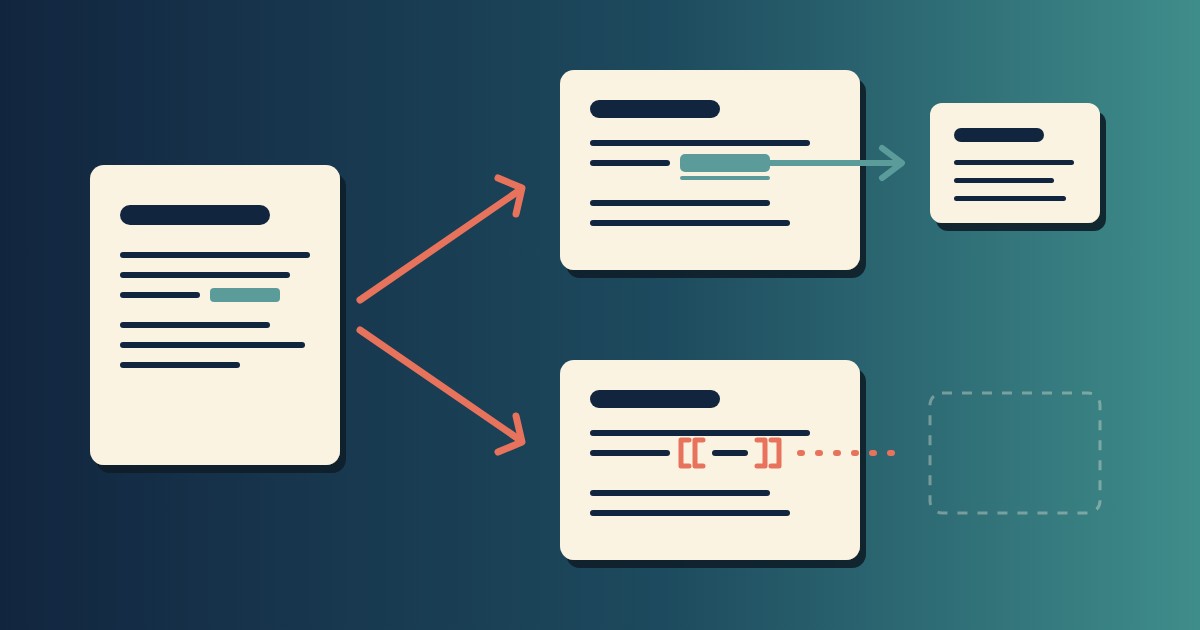
Wikilinks vs Markdown Links: Which One Still Works When You Change Apps
[[Note]] is not part of Markdown, so most tools show it as typed. [Note](Note.md) works in all of them. One test file, three readers, and a one-line conversion.
-
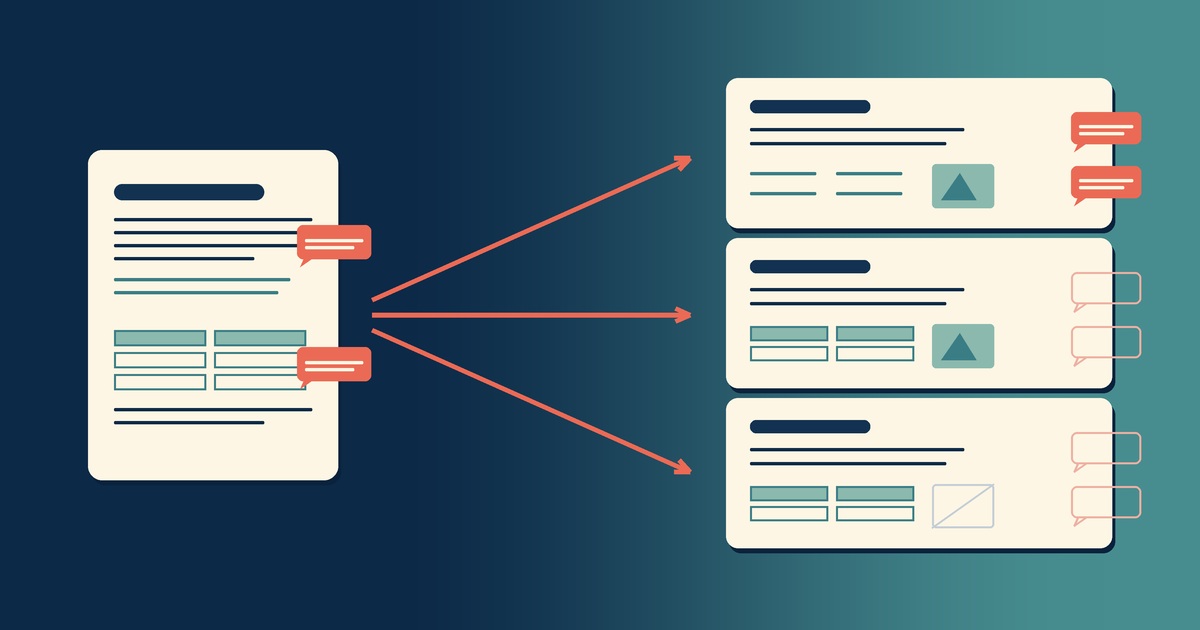
Google Docs to Markdown: Three Routes, and What Each Drops
Google Docs exports Markdown from the File menu, and drops every comment on the way. Three routes out of a Doc, tested on one document, and what each costs.
-
Leaving Google Keep? How to Get Your Notes Out as Markdown
Google Takeout hands you Keep as one file per note. A short script turns them into Markdown, titles, checklists and labels included, ready for any plain-text app.
-
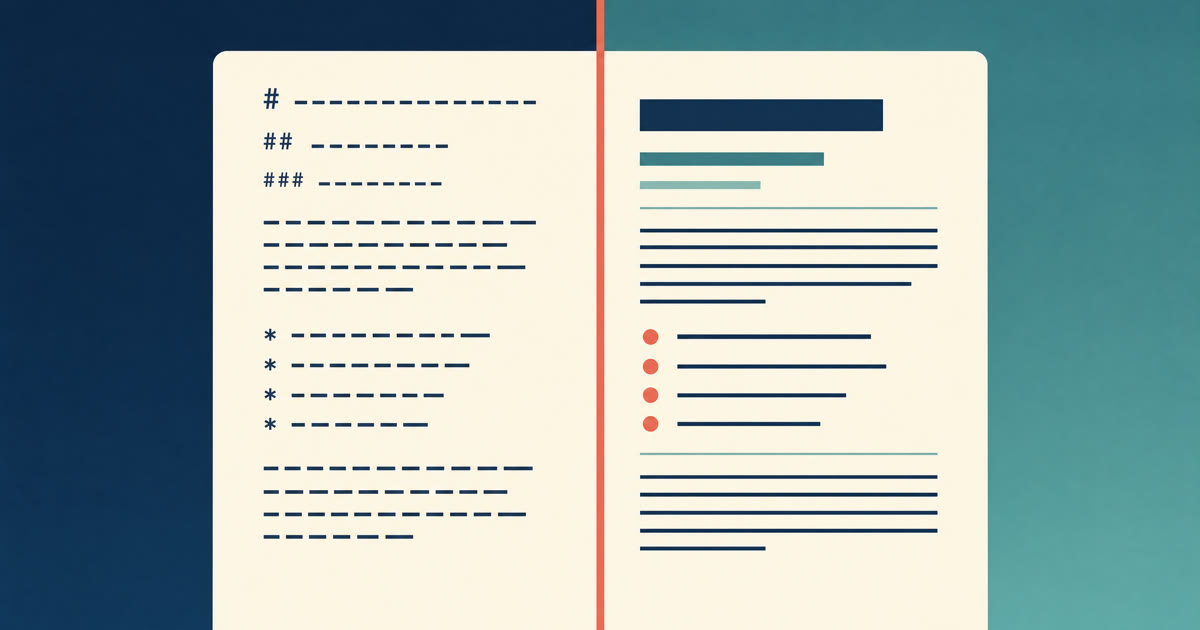
How to Preview a Markdown File on a Mac
Press Space on a .md file and macOS shows you the source, hashes and asterisks included. Here is why, and three ways to actually read the thing.
-

Save Web Pages as Markdown Notes You'll Actually Find Again
Save a web page as a Markdown note: paste it into Constly, or save it as HTML and import. The clutter stays behind; you get a plain .md you can search.