Leaving Google Keep? How to Get Your Notes Out as Markdown
To get your notes out of Google Keep, request a Keep-only export from Google Takeout, unzip it, and run the short script below over the Takeout/Keep folder. You end up with one Markdown file per note, titles as headings, checklists as task lists, labels and dates kept, ready to open in Constly or any other plain-text app. Keep itself is untouched; the export is a copy.
Keep users move to file-based Markdown apps for the same handful of reasons, and the one that comes up most is wanting notes that live in a folder they own rather than in an account. If that’s you, here’s the whole route, with the parts Google’s own tools don’t do for you.
Step 1: get the export from Google Takeout
Google Takeout is the official way to download your data from a Google account, and Keep is one of the products it covers. (Google’s own guide.)
- Go to takeout.google.com and click Deselect all.
- Scroll to Keep, tick it, and click Next step.
- Choose Export once and a
.zip, then click Create export. - Wait for the email, download the archive and unzip it.
If your Keep has a lot of photos, drawings or audio, Takeout may split the export across several numbered zips (...-001.zip, -002.zip). Unzip all of them into the same place, or the script will only see part of your notes.
Inside, under Takeout/Keep/, each note arrives as its own pair of files: a .json with the note’s title, text, checklist items, labels, colour and timestamps, and a .html rendering of the same note. Images you attached to notes sit alongside as image files.
Step 2: turn the notes into Markdown
Either file works. The .html version of a note can be imported one at a time in Constly with File → Import (Word, HTML…)…, which is fine for a handful of notes. For the whole archive the .json files are the better source, because they are structured data: a script can read the title, the text, each checklist item and its tick, the labels and the timestamps as separate fields, instead of digging them back out of a rendered page.
The script below does that and writes one Markdown file per note. It needs Python 3. Every recent Mac has the command, though the first time you run it macOS may offer to install the Command Line Tools, which is a large download; on Windows the launcher is usually py rather than python3.
import json, glob, os, re, sys, unicodedata
from datetime import datetime
src = sys.argv[1] if len(sys.argv) > 1 else "Takeout/Keep"
out = sys.argv[2] if len(sys.argv) > 2 else "keep-notes"
os.makedirs(out, exist_ok=True)
def slug(title):
s = unicodedata.normalize("NFKC", title).casefold()
s = re.sub(r"[^\w]+", "-", s, flags=re.UNICODE).strip("-")
return s[:60] or "untitled"
paths = sorted(glob.glob(os.path.join(src, "*.json")))
if not paths:
sys.exit(f"No .json files in {src} — point me at the Takeout/Keep folder.")
written = skipped = failed = 0
used = set()
for path in paths:
try:
with open(path, encoding="utf-8") as fh:
note = json.load(fh)
if note.get("isTrashed"):
skipped += 1
continue
title = (note.get("title") or "").strip() or "Untitled"
stamp = note.get("createdTimestampUsec") or note.get("userEditedTimestampUsec")
created = datetime.fromtimestamp(int(stamp) / 1e6).strftime("%Y-%m-%d") if stamp else "undated"
lines = [f"# {title}"]
if note.get("textContent"):
lines += ["", note["textContent"].strip()]
items = note.get("listContent") or []
if items:
lines.append("")
for item in items:
box = "x" if item.get("isChecked") else " "
lines.append(f"- [{box}] {(item.get('text') or '').strip()}")
links = [a for a in note.get("annotations") or [] if a.get("url")]
if links:
lines += ["", "Links:", ""]
for a in links:
lines.append(f"- [{a.get('title') or a['url']}]({a['url']})")
files = [a.get("filePath") for a in note.get("attachments") or [] if a.get("filePath")]
if files:
lines += ["", "Attachments:", ""]
for name in files:
lines.append(f"")
meta = [f"Created: {created}"]
labels = [l.get("name") for l in note.get("labels") or [] if l.get("name")]
if labels:
meta.append("Labels: " + ", ".join(labels))
if note.get("isArchived"):
meta.append("Archived in Keep")
lines += ["", "---", "", " \u00b7 ".join(meta), ""]
base = f"{created}-{slug(title)}"
name, n = base, 2
while name.casefold() in used or os.path.exists(os.path.join(out, name + ".md")):
name, n = f"{base}-{n}", n + 1
used.add(name.casefold())
with open(os.path.join(out, name + ".md"), "w", encoding="utf-8") as fh:
fh.write("\n".join(lines))
written += 1
except Exception as err:
failed += 1
print(f"skipped {os.path.basename(path)}: {err}", file=sys.stderr)
print(f"{written} notes written to {out}/"
+ (f", {skipped} in the trash" if skipped else "")
+ (f", {failed} could not be read" if failed else ""))Save it as keep2md.py next to the unzipped archive and run:
python3 keep2md.py Takeout/Keep keep-notesIf it stops on a note, or a note comes out wrong, open an issue with the error and that note’s .json with anything personal taken out. Takeout changes its format now and then, and that is how the script stays current.
What it does: the note title becomes the heading, plain notes keep their text, checklists become Markdown task lists with their ticks intact, links and attachments are listed, and a footer records the creation date and labels. Notes still in Keep’s trash are skipped, archived notes are marked as such, and each file is named by date and title so the folder sorts itself. Two notes that would land on the same filename get a number rather than overwriting each other, and a note the script cannot read is reported by name and skipped instead of stopping the run. A note titled “Venue keys” created on 18 August becomes 2026-08-18-venue-keys.md:
# Venue keys

Pick up the venue keys on Thursday.
Ask about the side door.

---

Created: 2026-08-18 · Labels: work, venue
What it doesn’t do:
- Move your images. It writes the link, using the filename Keep recorded for the attachment, but the file itself stays in the export folder. Copy the images into
keep-notes/alongside the notes and the links resolve. - Keep rich text. Bold, italic and headings applied inside a Keep note live in a separate field the script ignores, and indented checklist sub-items come out flat. The words all survive; the styling doesn’t.
- Escape your own text. Note text is copied across verbatim, so if a note contains Markdown characters, a line of dashes or a line starting with
#, a Markdown editor will render it as Markdown.
Step 3: open the folder
In Constly, File → Open Folder… and pick keep-notes. Every note is there, readable, editable, and searchable by name with Quick Open (⌘⌥P). Spotlight indexes plain text too, so a search from the desktop finds them as well.
From here the notes are yours in the plainest sense: a folder of .md files that any editor opens, that a backup catches, and that no export button stands between you and. If you want the reasoning for keeping them that way, What local-first actually means and Plain-text notes you’ll still be able to open in 2040 are the two posts to read.
Housekeeping worth ten minutes
- Labels into folders, or not. Keep’s labels are in each note’s footer. If you’d rather browse by them, make a folder per label and move the files; if you’d rather search, leave them where they are and search for the label word.
- Colours are gone. Keep’s note colours have no plain-text equivalent, so the script drops them. If a colour meant something to you, it’s in the
.jsonundercolorand you can add a label for it before you convert. - Keep is still there. Nothing above touches your Google account. Run Keep on your phone for as long as you like; when you’re ready, delete from there, not from the export.
FAQ
Will my checklists survive? Yes. Each item becomes a Markdown task list line, ticked or unticked as it was in Keep, and Constly renders those as checkboxes you can click. Indented sub-items come out at the same level as everything else.
What happens to images and drawings? They’re exported as image files next to the notes. The script leaves them in place; move them into your notes folder and link them from the note they belong to.
Do I have to use Constly for this? No. The output is plain Markdown, so any editor works. Constly is free and opens a folder of notes without any setup, which is why it’s the example.
Can I do this without the terminal?
For a few notes, yes: import each note’s .html file in Constly with File → Import (Word, HTML…)…. That path converts through Pandoc. If you don’t already have it, Constly offers to fetch it for you in one click (since 4.10.0). For hundreds of notes, the script is the ten-second version of an afternoon.
Constly is free to download, for macOS, Windows and Linux. Every feature works without an account, the folder included.
Keep reading
-
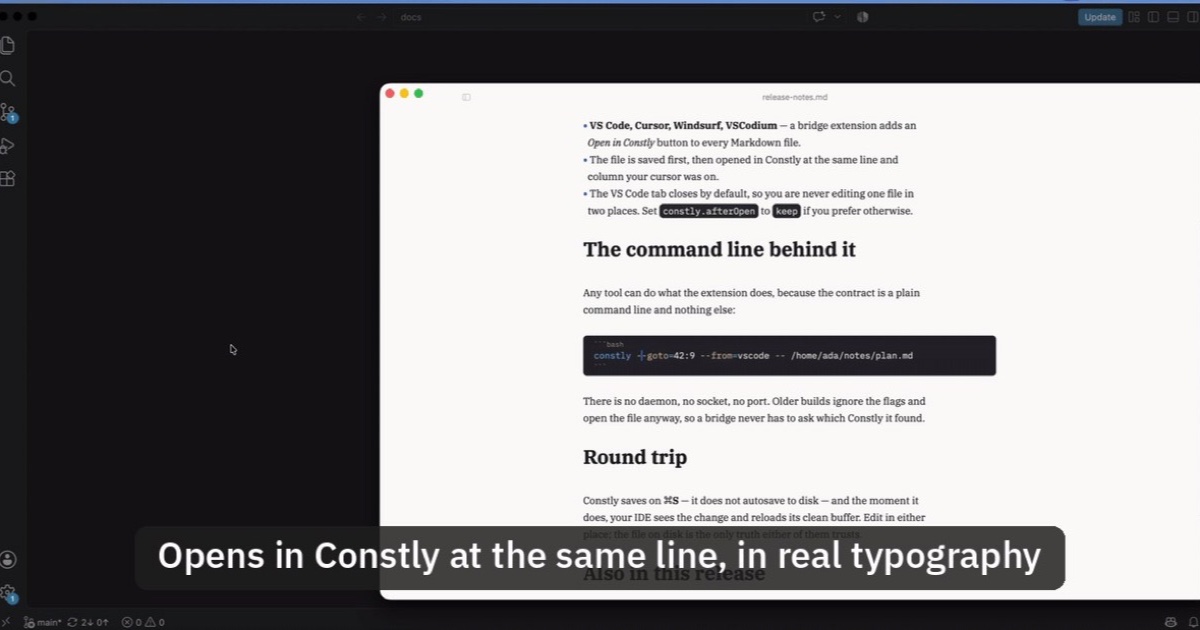
Open Markdown from VS Code, Cursor or Windsurf in Constly
A free extension for VS Code, Cursor, Windsurf and VSCodium: one click saves the Markdown file you're on and opens it in Constly, at your cursor.
-
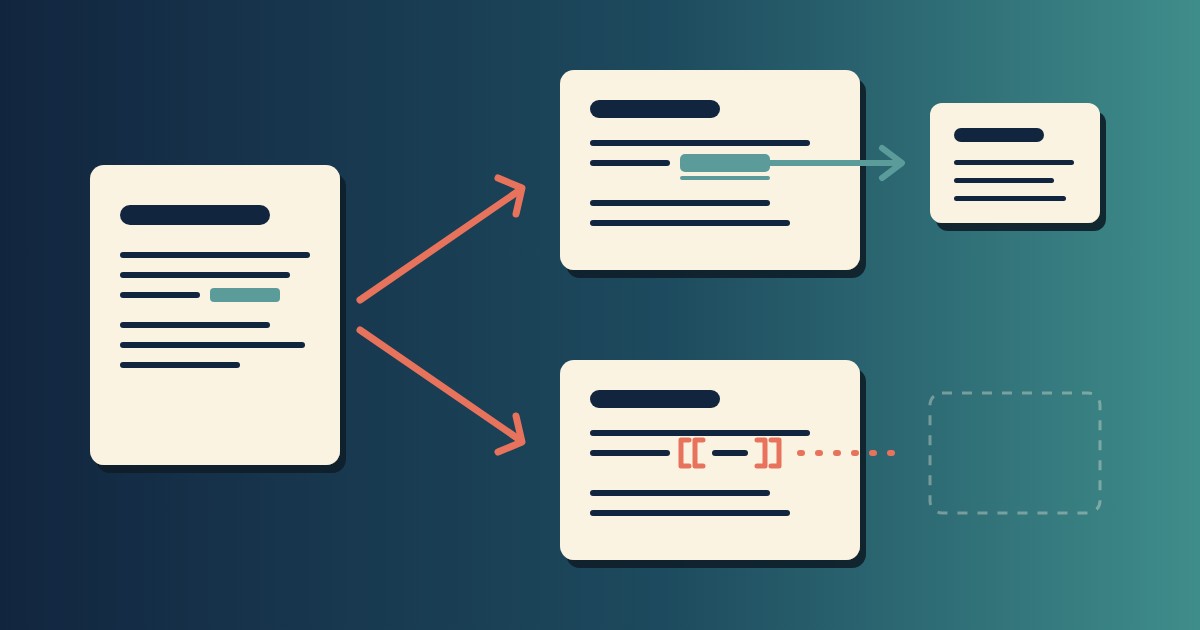
Wikilinks vs Markdown Links: Which One Still Works When You Change Apps
[[Note]] is not part of Markdown, so most tools show it as typed. [Note](Note.md) works in all of them. One test file, three readers, and a one-line conversion.
-
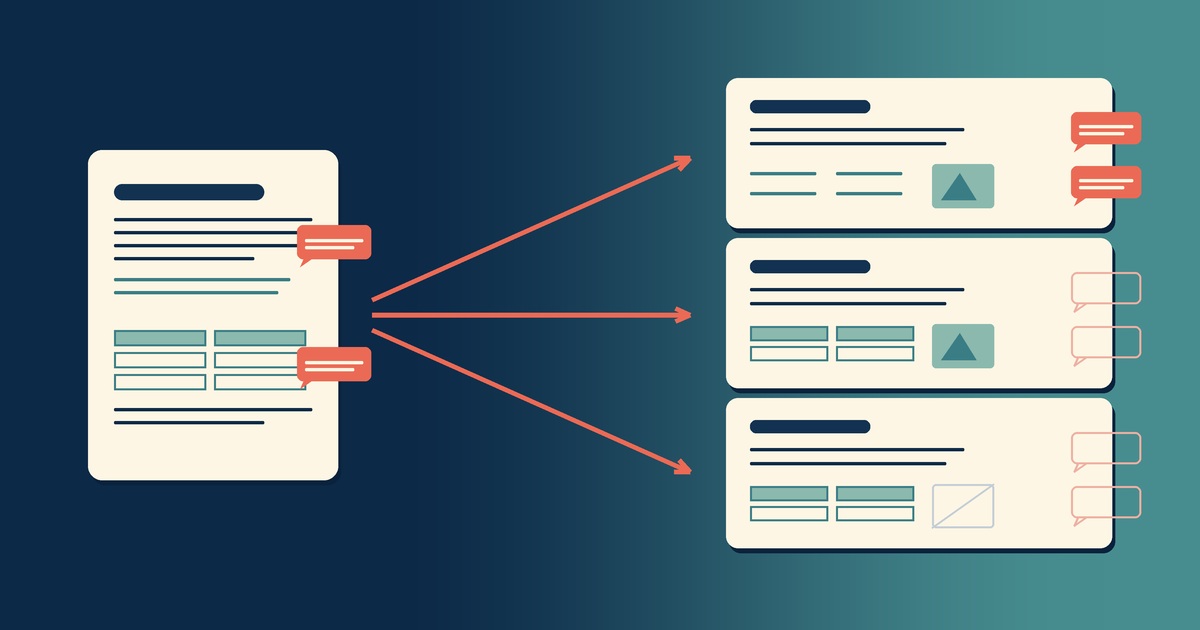
Google Docs to Markdown: Three Routes, and What Each Drops
Google Docs exports Markdown from the File menu, and drops every comment on the way. Three routes out of a Doc, tested on one document, and what each costs.
-
How to Preview a Markdown File on a Mac
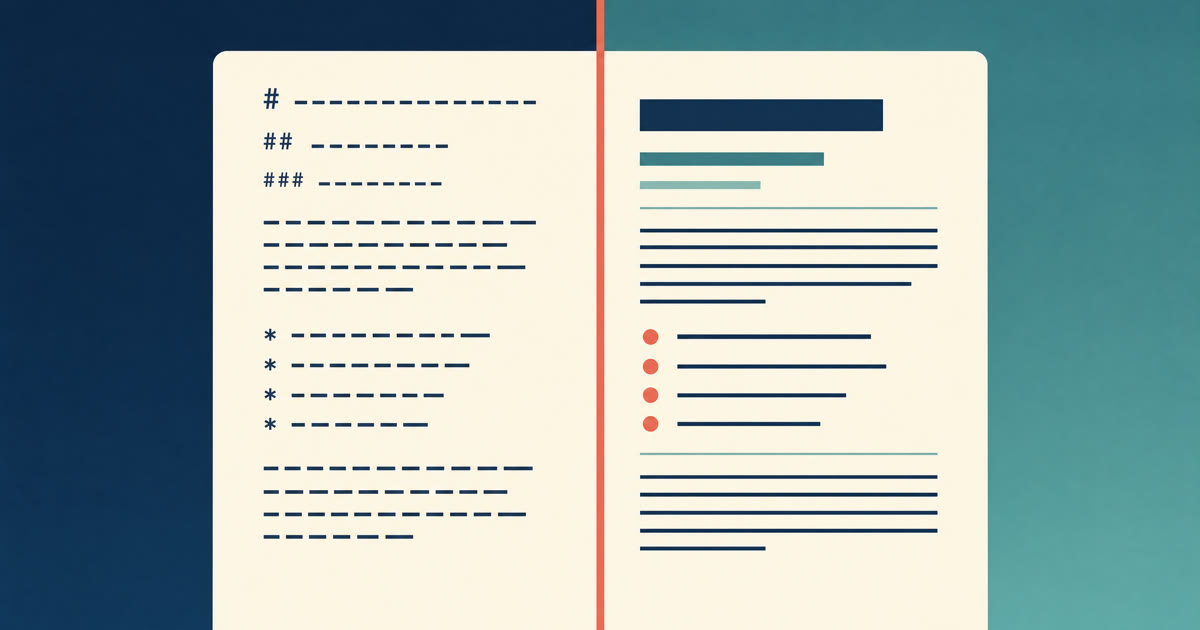
Press Space on a .md file and macOS shows you the source, hashes and asterisks included. Here is why, and three ways to actually read the thing.
-

Version History for Your Notes, Free, Forever
Two free layers of version history for plain-text notes: Constly's local snapshots as you save, and git for a history that outlives any app. Plus a ten-minute backup plan.
-

Save Web Pages as Markdown Notes You'll Actually Find Again
Save a web page as a Markdown note: paste it into Constly, or save it as HTML and import. The clutter stays behind; you get a plain .md you can search.