How to Preview a Markdown File on a Mac
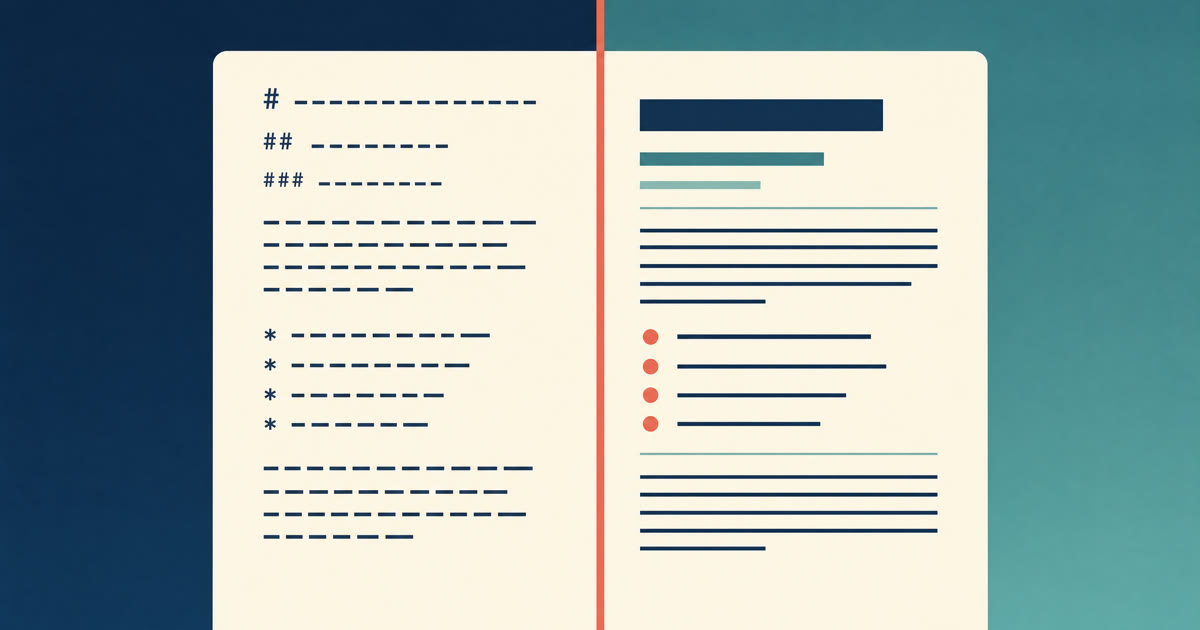
Select a .md file in Finder, press Space, and macOS shows you the file. Just not the way you hoped. You get # Heading one with the hash still on it, **bold** with the asterisks still there, and links as [text](url). That is the source, not the document.
Nothing is broken. macOS is doing exactly what it was told to do. Below is why, and three ways to read the formatted version instead, starting with the one that takes no installing.
Why Quick Look shows you the source
Every file type on macOS has an identifier, and Quick Look picks its preview generator from that. Markdown’s identifier is net.daringfireball.markdown, and it is declared as a kind of plain text. So Quick Look hands the file to the system’s text previewer, which does what a text previewer should: it shows you the characters in the file, in a monospace font, unchanged.
That is worth knowing rather than resenting. The reason a Markdown file previews as text is the same reason it will still open in 2040. There is no Markdown renderer in the preview because there does not have to be one anywhere.
We checked this on a Mac running macOS 26 with no third-party Quick Look extensions installed. A file containing a heading, bold text, a link and a list previewed as all four of those things written out in full, exactly as typed.
Option one: open it in an editor that renders it
The quickest fix is not to fight Quick Look at all. Open the file in something that reads Markdown and shows it formatted.
Constly does this on a single file with no folder to set up and no account to make. Open the .md, and headings, bold, links and lists render as you go, with the syntax showing only on the line your cursor is in. For reading rather than editing, Reading Mode (⌘⇧R) puts the source away entirely.
It is free, and there is no sign-in step between downloading it and opening a file. That is the whole reason it exists, and we wrote about it at more length in Sometimes you just want to open a Markdown file.
Option two: teach Quick Look to render Markdown
If you want Space in Finder to show a formatted preview, you need to add a Quick Look extension, because macOS does not ship one for Markdown.
QLMarkdown is the one most people use. It is open source under the GPL, actively maintained, and it does one job: it renders Markdown in the Quick Look panel instead of showing the source. Install it, allow it in System Settings, and Space starts giving you the formatted version.
The trade is that you have installed a system extension to change how Finder behaves, and you will maintain it across macOS updates. Worth it if you preview Markdown files all day. Overkill if you do it twice a week.
Option three: leave it as source on purpose
There is a real case for doing nothing. Markdown was designed to be readable as plain text. A heading with a # in front of it is still obviously a heading. If you are skimming a README to find a command, the source view is often faster than the rendered one, because nothing is hidden and nothing has moved.
Quick Look also does one thing well here that a renderer cannot: it shows you what is actually in the file, which is what you want when a link looks wrong or a table will not line up.
Which one to pick
| You want to | Do this | Cost |
|---|---|---|
| Read one file properly, right now | Open it in Constly, Reading Mode for the clean view | Free, no account |
| Make Space in Finder render Markdown everywhere | Install QLMarkdown | Free, open source, a system extension to maintain |
| Skim for a command or check the raw syntax | Press Space and read the source | Nothing to install |
FAQ
Why does macOS not render Markdown in Quick Look already? Because Markdown is registered as a plain-text format, and the plain-text previewer shows the characters in the file. Apple has never shipped a Markdown renderer for Quick Look, which is why the extension in option two exists.
Does this change if I rename the file to .txt? No. Both extensions land on plain text, so the preview is the same. The only difference is which app opens the file when you double-click it.
Can I preview Markdown without installing anything? Yes, as source. Press Space and read it as written. For the formatted version you need something that renders Markdown, which is either an editor you open the file in or a Quick Look extension you install.
Is Constly a viewer or an editor? Both, and it opens single files rather than asking you to set up a workspace first. Reading Mode is the viewer half. Download it free if that is the half you need today.
Keep reading
-
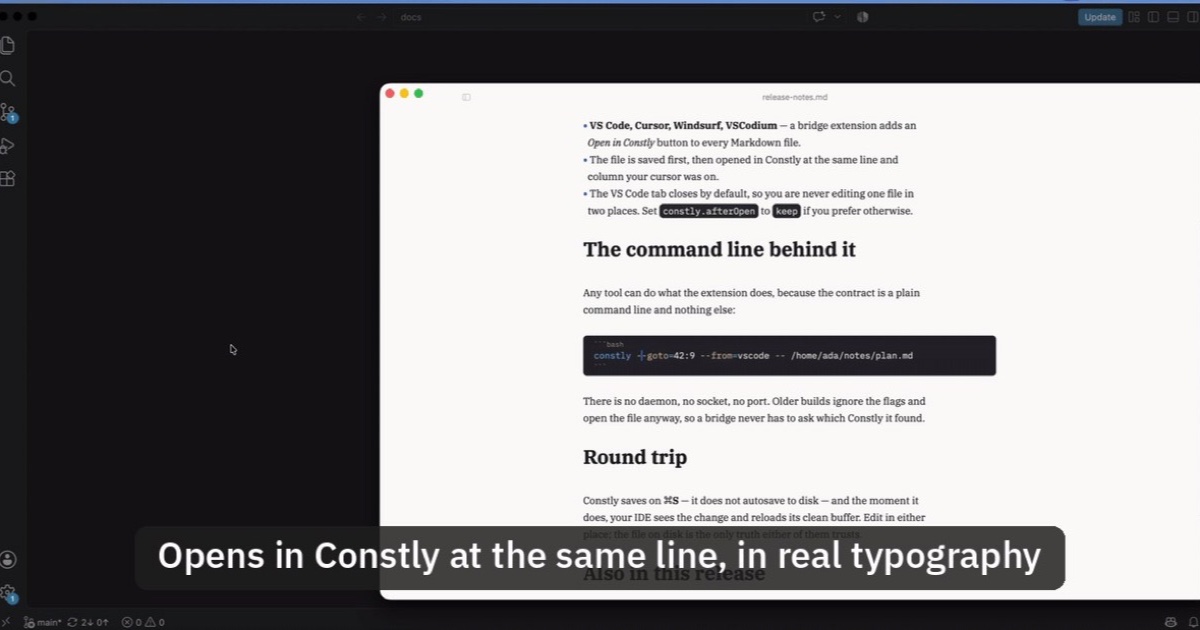
Open Markdown from VS Code, Cursor or Windsurf in Constly
A free extension for VS Code, Cursor, Windsurf and VSCodium: one click saves the Markdown file you're on and opens it in Constly, at your cursor.
-
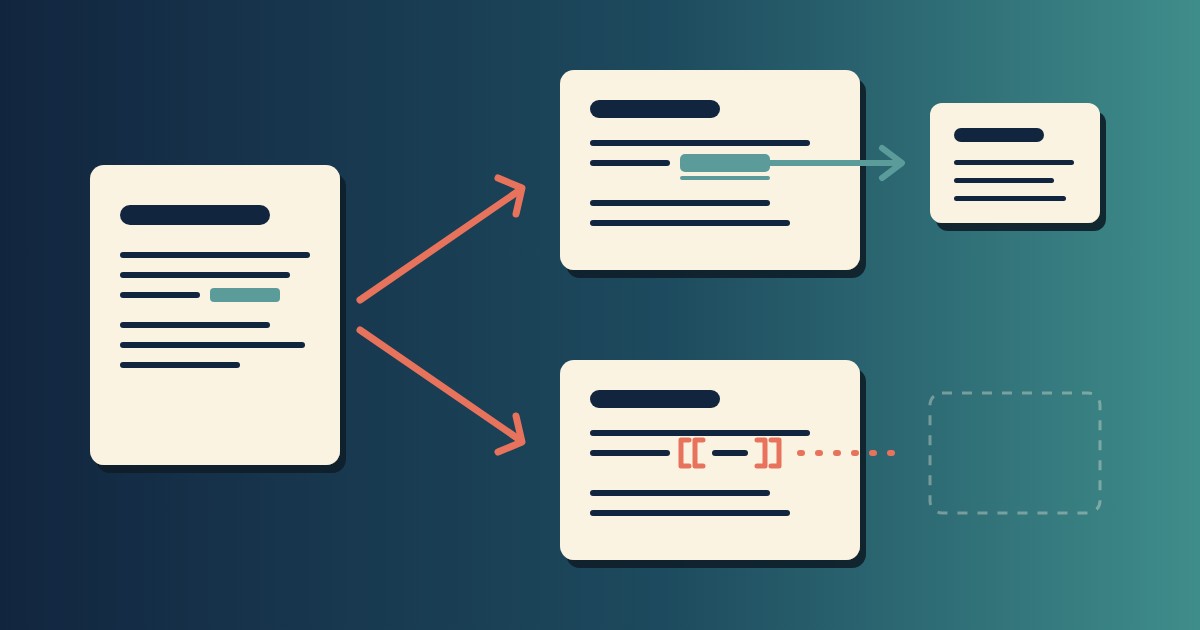
Wikilinks vs Markdown Links: Which One Still Works When You Change Apps
[[Note]] is not part of Markdown, so most tools show it as typed. [Note](Note.md) works in all of them. One test file, three readers, and a one-line conversion.
-
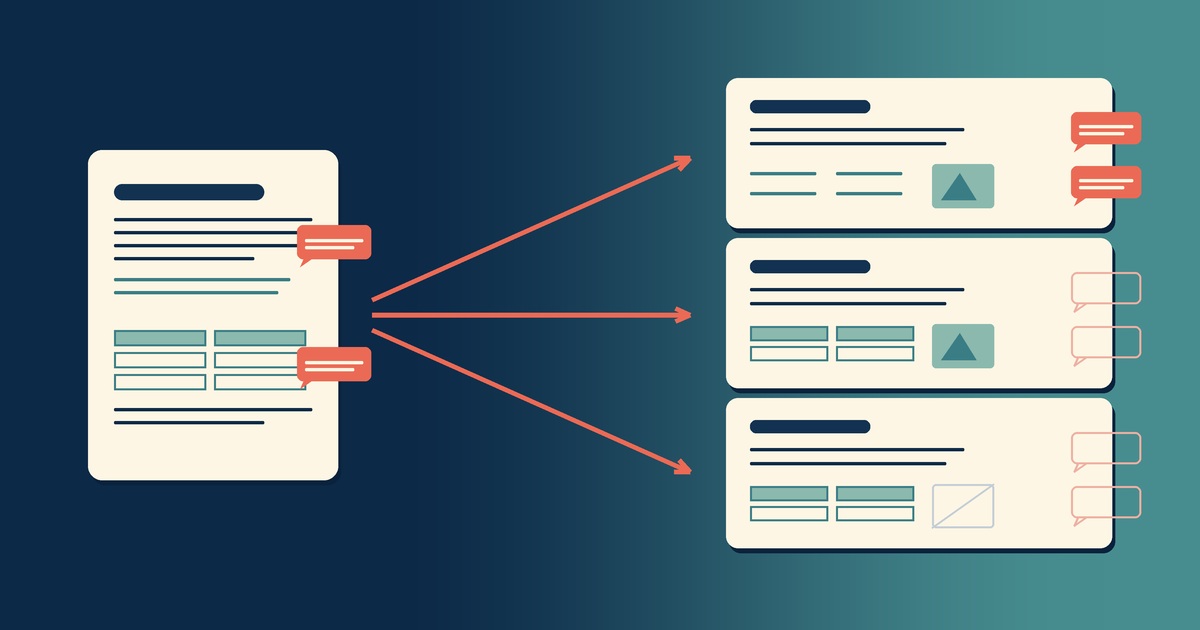
Google Docs to Markdown: Three Routes, and What Each Drops
Google Docs exports Markdown from the File menu, and drops every comment on the way. Three routes out of a Doc, tested on one document, and what each costs.
-
Leaving Google Keep? How to Get Your Notes Out as Markdown
Google Takeout hands you Keep as one file per note. A short script turns them into Markdown, titles, checklists and labels included, ready for any plain-text app.
-

Version History for Your Notes, Free, Forever
Two free layers of version history for plain-text notes: Constly's local snapshots as you save, and git for a history that outlives any app. Plus a ten-minute backup plan.
-

Save Web Pages as Markdown Notes You'll Actually Find Again
Save a web page as a Markdown note: paste it into Constly, or save it as HTML and import. The clutter stays behind; you get a plain .md you can search.