How to convert Markdown to PDF on a Mac
The fastest way to convert Markdown to PDF on a Mac is now a single menu item: in Constly, File → Export PDF… renders a real, self-contained PDF directly in the app — no browser detour, works fully offline. For documents with Mermaid diagrams, export HTML and print it. For automation or precise typesetting, use Pandoc. Here’s each method and when to reach for it.
Updated August 2026: when we first published this guide, the in-app route was HTML-then-print. Constly 4.5 added direct PDF export, so that’s now Method 1 — and the old advice keeps its place for the documents the new exporter hands off to print.
Updated September 2026: Export PDF now renders math, a [toc], and the images in your document’s folder itself, so HTML-then-print is only needed for Mermaid diagrams.
Method 1 — Export PDF directly from Constly (new, and now the default)
Since Constly 4.5, PDF export happens inside the app:
- Open your
.mdfile. - File → Export PDF… and save.
That’s the whole method. The result is a proper, deterministic PDF — the same file on every machine — with your fonts embedded and your reading-column width respected. It works fully offline, and unlike any print-to-PDF route, the output is tagged for accessibility (screen readers get real headings and lists, not a picture of text).
It renders text, headings, lists, tables, code, quotes, links and math. A [toc] becomes a real table of contents with page numbers, and images in the document’s folder go into the PDF. An image from the web or from outside the folder is listed first for you to choose, and none of them goes in until you confirm it in a system dialog. One limit: a Mermaid diagram comes out as its code, so for diagrams use Method 2. And if the built-in engine can’t render a document, Constly asks before handing it to the print panel, and tells you that PDF won’t be tagged. (Prefer the system dialog always? Settings → “PDF export: System dialog” hands the job back to the OS print panel.)
Best for: almost everything: notes, essays, READMEs, documents with math or pictures, anything you want as a clean, accessible PDF in two clicks.
Method 2 — Export to HTML, then print to PDF (best for Mermaid diagrams)
For documents where the direct exporter defers to print, the cleanest route is a self-contained HTML export, then print that to PDF. In Constly:
- Open your
.mdfile. - File → Export HTML… (or ⌘⇧E) and save the page.
- Open the exported
.htmlin your browser, then File → Print → Save as PDF.
Constly bakes everything into that single HTML file — your KaTeX math, Mermaid diagrams, highlighted code blocks and images — so the printed PDF keeps it all, with no watermark. (Most Markdown editors offer a comparable export; the labels differ, but the idea is the same.)
Best for: documents with Mermaid diagrams, which the built-in PDF engine doesn’t draw.
Method 3 — Pandoc (best for automation and typesetting)
Pandoc is the command-line workhorse for converting between document formats, and it gives you the most control. You’ll install Pandoc plus a PDF engine (LaTeX is the usual choice).
# Install Pandoc and a lightweight LaTeX engine via Homebrew
brew install pandoc
brew install --cask basictex      # smaller than full MacTeX

# Restart your terminal so the LaTeX tools are on your PATH, then:
pandoc notes.md -o notes.pdf
A few useful flags:
pandoc notes.md -o notes.pdf --toc            # add a table of contents
pandoc notes.md -o notes.pdf -V geometry:margin=1in   # set margins
If a build complains about a missing LaTeX package, install it with sudo tlmgr install <package>. It’s more setup than a menu click, but once it works you can convert dozens of files in a script — ideal for repeatable, well-typeset output.
Best for: batch conversion, CI pipelines, and anyone who wants fine control over the typography.
Method 4 — Print to PDF (quickest one-off)
macOS can save any printable view as a PDF, no tools required — and in Constly, ⌘P opens the system print panel with a live preview:
- Open the rendered Markdown — Constly, your editor’s preview, or a browser.
- File → Print (⌘P).
- In the print dialog, click the PDF dropdown (bottom-left) → Save as PDF.
It’s instant, but the layout follows whatever stylesheet the view uses, so it’s less predictable than the other methods.
Best for: a single quick export when you don’t need it to look perfect.
Which method should you use?
| Method | Setup | Control | Best for |
|---|---|---|---|
| Constly: Export PDF | None | Good | Most documents, accessible PDFs |
| Constly: HTML → print | None | Good | Documents with Mermaid diagrams |
| Pandoc | One-time install | Highest | Automation, precise typesetting |
| Print to PDF | None | Low | Fast one-offs |
For most people, File → Export PDF… in Constly is now the sweet spot — no terminal, no LaTeX, no browser, and the PDF is accessible out of the box. If that’s you, Constly is free to download. If you’re a fan of free Markdown tools generally, here’s our list of the best free Markdown editors for Mac.
Last updated September 25, 2026.
Keep reading
-
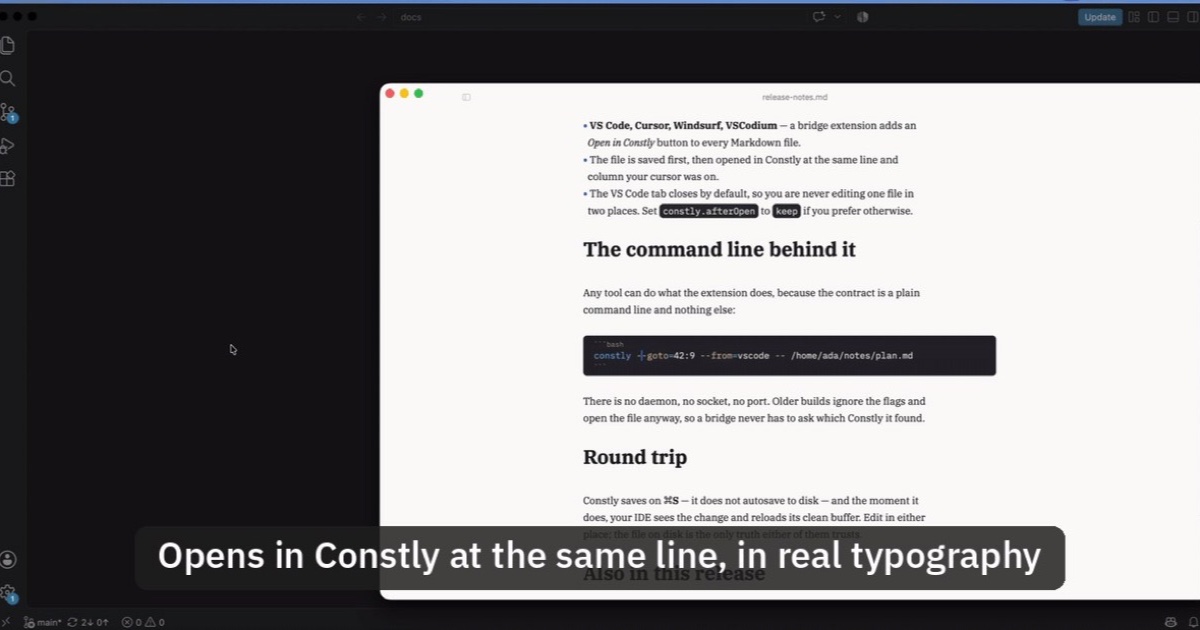
Open Markdown from VS Code, Cursor or Windsurf in Constly
A free extension for VS Code, Cursor, Windsurf and VSCodium: one click saves the Markdown file you're on and opens it in Constly, at your cursor.
-
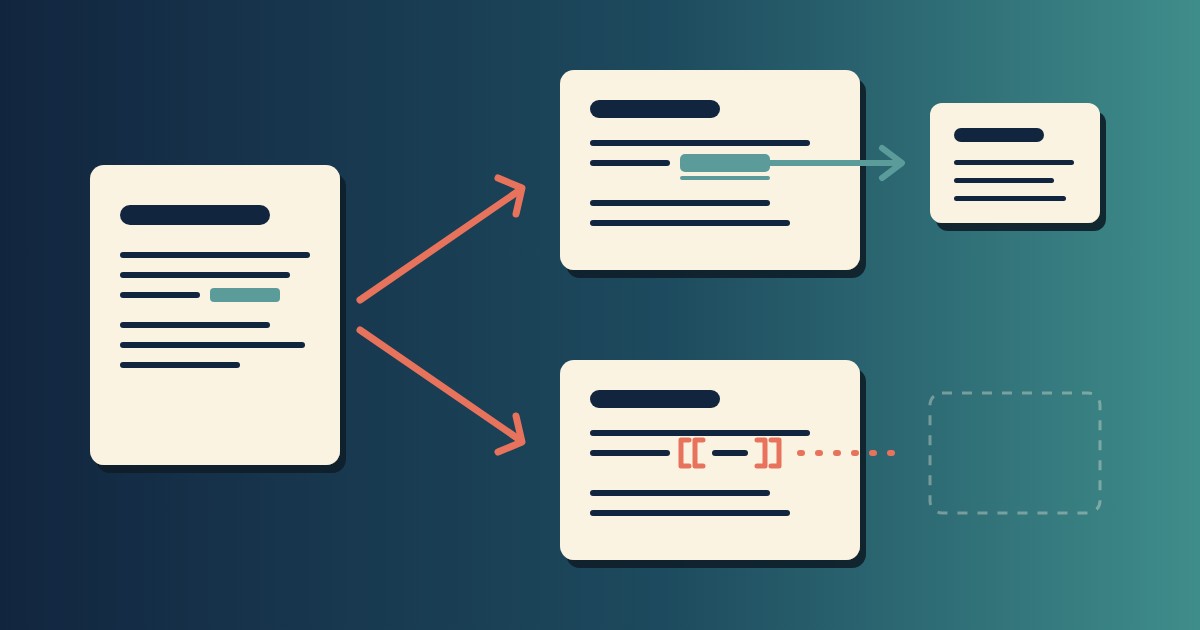
Wikilinks vs Markdown Links: Which One Still Works When You Change Apps
[[Note]] is not part of Markdown, so most tools show it as typed. [Note](Note.md) works in all of them. One test file, three readers, and a one-line conversion.
-
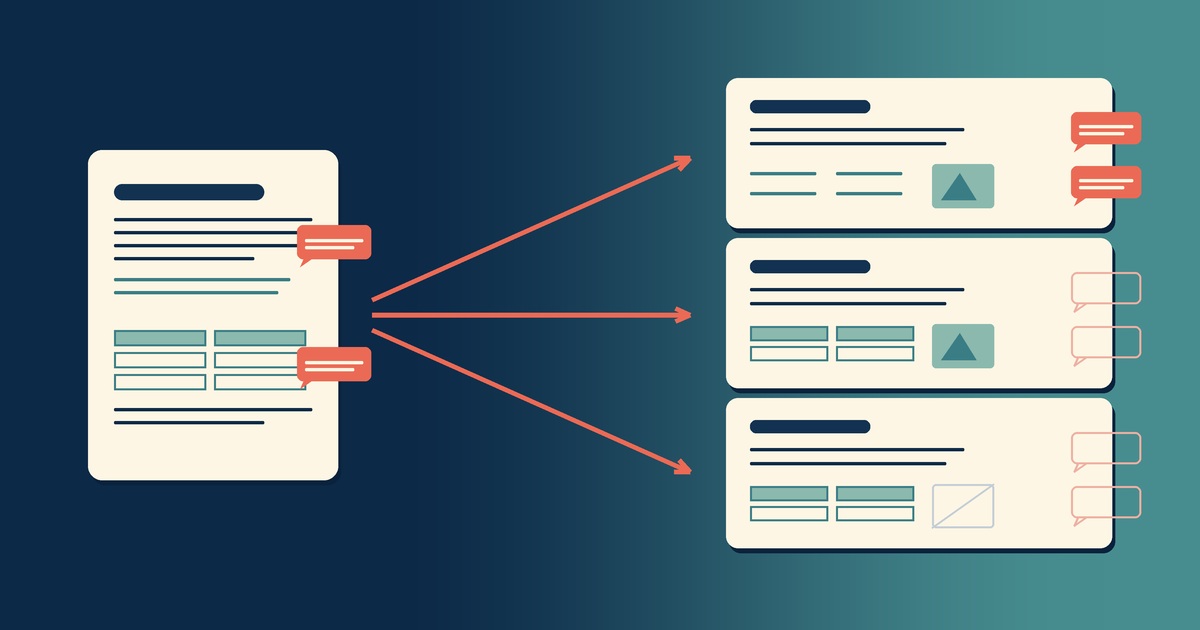
Google Docs to Markdown: Three Routes, and What Each Drops
Google Docs exports Markdown from the File menu, and drops every comment on the way. Three routes out of a Doc, tested on one document, and what each costs.
-
Leaving Google Keep? How to Get Your Notes Out as Markdown
Google Takeout hands you Keep as one file per note. A short script turns them into Markdown, titles, checklists and labels included, ready for any plain-text app.
-
How to Preview a Markdown File on a Mac
Press Space on a .md file and macOS shows you the source, hashes and asterisks included. Here is why, and three ways to actually read the thing.
-

Version History for Your Notes, Free, Forever
Two free layers of version history for plain-text notes: Constly's local snapshots as you save, and git for a history that outlives any app. Plus a ten-minute backup plan.