The best free Markdown editor for Mac (2026)

The best free Markdown editor for Mac depends on how you like to write. For writing that looks finished as you type, Constly shows formatting in place, exports to PDF, Word and EPUB, and is free to use with no expiry. For academic writing with citations, Zettlr. For a classic split-pane preview, MacDown. For linked notes, Obsidian. Every pick below is genuinely free on macOS — no trial that expires, no watermark, no account.
Full disclosure up front: we make Constly. So take our #1 with the appropriate pinch of salt — but the list is honest, and the other four are genuinely good free tools we’d happily recommend.
Updated October 2026: we added Zettlr, the pick for academic writing with citations.
Updated August 2026: we re-checked every editor on this list. MacDown moved down (still free, still works, but dormant since 2023), and Obsidian’s license got even friendlier.
What “free” should actually mean
“Free” gets stretched. A 15-day trial isn’t free; a free tier with watermarked exports isn’t really free either. For this list, free means: you can write, save, and export forever without paying, without a feature wall, and without your documents carrying a “made with…” stamp.
That’s why Typora isn’t on this list — it’s a fine editor, but after a 15-day trial it’s a one-time $14.99. If you specifically want a free stand-in for it, we wrote a whole post on free Typora alternatives for Mac.
The five best free Markdown editors for Mac
1. Constly: free, and it looks finished as you type
Constly hides the Markdown as you write. Type **bold** and the asterisks disappear when your cursor moves on, then come back when you click into the word. Tables become grids you can type in, and math, Mermaid diagrams and footnotes render on the page. Focus mode dims everything except the sentence you’re in, and typewriter mode keeps your line centered.
A finished draft exports to PDF from inside the app, or to Word, EPUB or HTML. It works the other way too: import a Word file, or a Google Doc downloaded as a zipped web page, and the pictures and tables come with it. Turn on local version history and you can compare any saved version with the current one, then restore it.
Your notes stay plain .md files on your own disk, and Constly never re-wraps or reformats text you didn’t touch: edit one paragraph and only that paragraph changes. It’s a native app with no account and no telemetry. Every feature is free with no expiry. After two weeks a weekly reminder appears, and a one-time $19.99 license (up to three devices) retires it.
2. Zettlr: free for academic writing and citations
Zettlr calls itself a “one-stop publication workbench”, and it’s built for long-form and academic writing. It connects to reference managers such as Zotero for citations, and it exports through Pandoc to Word, PDF, HTML and more. You choose how the editor looks: rendered preview or raw Markdown. It also has a tag manager, internal links and a graph view if you keep a Zettelkasten.
It’s free and open source under GPL-3.0, with native builds for both Apple Silicon and Intel Macs, and it ships regularly (v4.8.0 came out on 18 September 2026). It works on folders of plain .md files, so it feels more like a workspace than a quick single-file editor. Free from zettlr.com or GitHub.
3. MacDown — the classic split-pane preview (with a caveat)
MacDown is the traditional layout: Markdown source on the left, rendered preview on the right. It’s free, open-source, Mac-only, lightweight and familiar — for years it was the default answer to this article’s question.
The honest caveat in 2026: MacDown hasn’t seen active development since 2023. It still works and it’s still genuinely free, but on current macOS you may hit rough edges that nobody’s rushing to fix. If split-pane is your preference, it remains worth a try; just know what you’re signing up for.
4. Obsidian — free for linked notes (now for everyone)
Obsidian stores everything as local .md files and is less a single-document editor than a knowledge base: [[wiki-links]], backlinks, and a graph view. If you’re building a connected vault of notes rather than editing one document at a time, it’s excellent — a different tool for a different job.
Even better since our first version of this list: Obsidian’s license now makes it free for all purposes — personal, commercial and non-profit alike (per their February 2025 license update). The paid tiers are optional support, not feature walls.
5. VS Code — free, if you already live in an editor
If you’re a developer, VS Code is free and already open. With the built-in Markdown preview (and an extension or two) it’s a perfectly capable Markdown environment. It’s a code editor first, though — not a writing app.
Free Mac Markdown editors, compared
| Editor | Price | Experience | Export | Best for |
|---|---|---|---|---|
| Constly | Free ($19.99 optional) | Inline WYSIWYG | PDF, Word, HTML, EPUB… | Writers, students and note-takers who want it to look finished |
| Zettlr | Free (GPL-3.0, open source) | Rendered or raw, your choice | Word, PDF, HTML and more via Pandoc | Academic writing with citations |
| MacDown | Free (open source; dormant since 2023) | Split-pane preview | HTML, PDF | Fans of raw + preview side by side |
| Obsidian | Free (all use, incl. commercial) | Linked notes | PDF, more via plugins | Building a connected note vault |
| VS Code | Free | Source + preview pane | Via extensions | Developers already in the editor |
Which should you pick?
If you want writing to look finished as you go, with formatting rendered in place, tables you can click into and plain files that stay yours, start with Constly. If you write papers with citations, Zettlr. If you’d rather stare at raw Markdown next to a preview, MacDown will still do it. And if your notes are really a web of linked ideas, Obsidian.
Whichever you choose, the good news is you don’t have to pay to write Markdown well on a Mac. Next up: how to turn any of these into a PDF.
Last updated October 4, 2026.
Keep reading
-
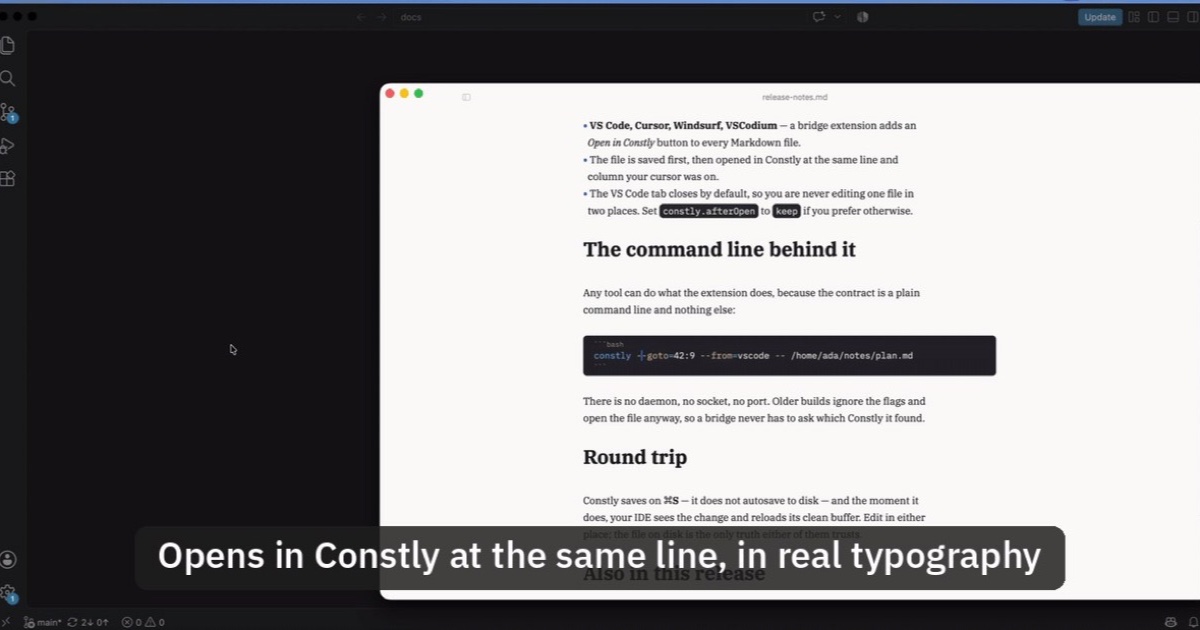
Open Markdown from VS Code, Cursor or Windsurf in Constly
A free extension for VS Code, Cursor, Windsurf and VSCodium: one click saves the Markdown file you're on and opens it in Constly, at your cursor.
-
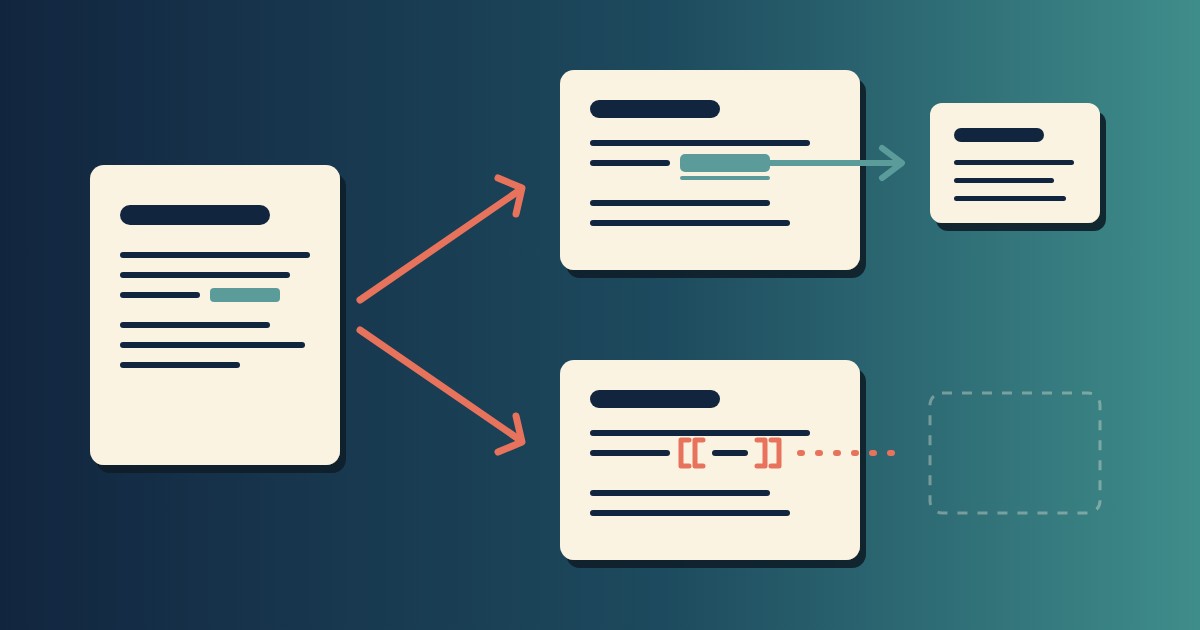
Wikilinks vs Markdown Links: Which One Still Works When You Change Apps
[[Note]] is not part of Markdown, so most tools show it as typed. [Note](Note.md) works in all of them. One test file, three readers, and a one-line conversion.
-
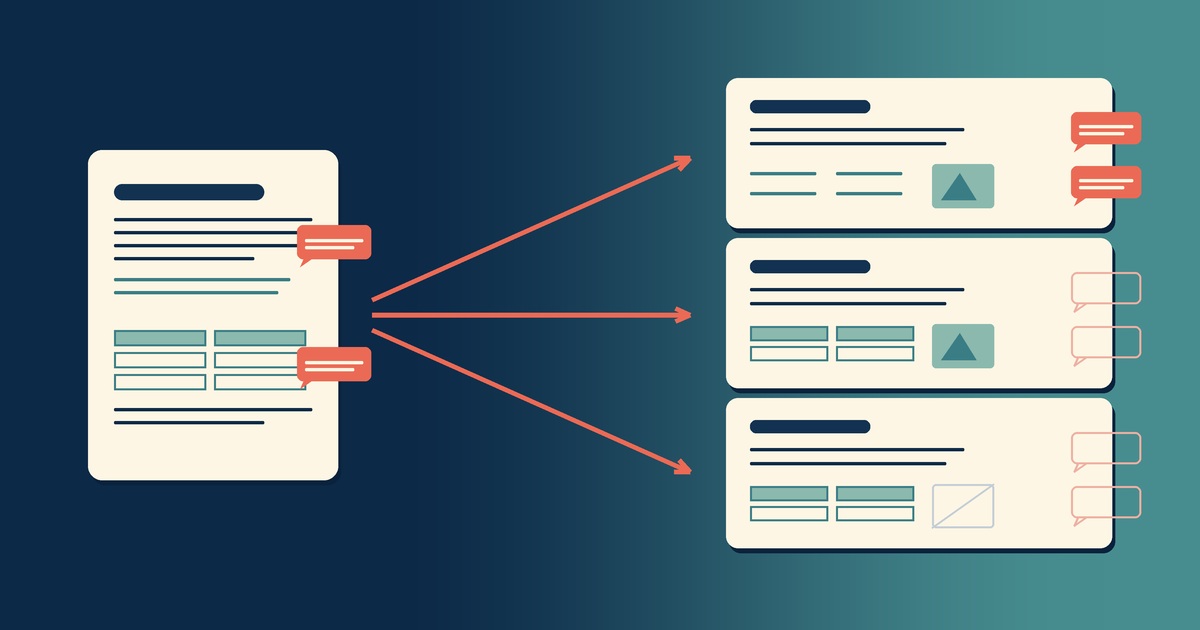
Google Docs to Markdown: Three Routes, and What Each Drops
Google Docs exports Markdown from the File menu, and drops every comment on the way. Three routes out of a Doc, tested on one document, and what each costs.
-
Leaving Google Keep? How to Get Your Notes Out as Markdown
Google Takeout hands you Keep as one file per note. A short script turns them into Markdown, titles, checklists and labels included, ready for any plain-text app.
-
How to Preview a Markdown File on a Mac
Press Space on a .md file and macOS shows you the source, hashes and asterisks included. Here is why, and three ways to actually read the thing.
-

Version History for Your Notes, Free, Forever
Two free layers of version history for plain-text notes: Constly's local snapshots as you save, and git for a history that outlives any app. Plus a ten-minute backup plan.